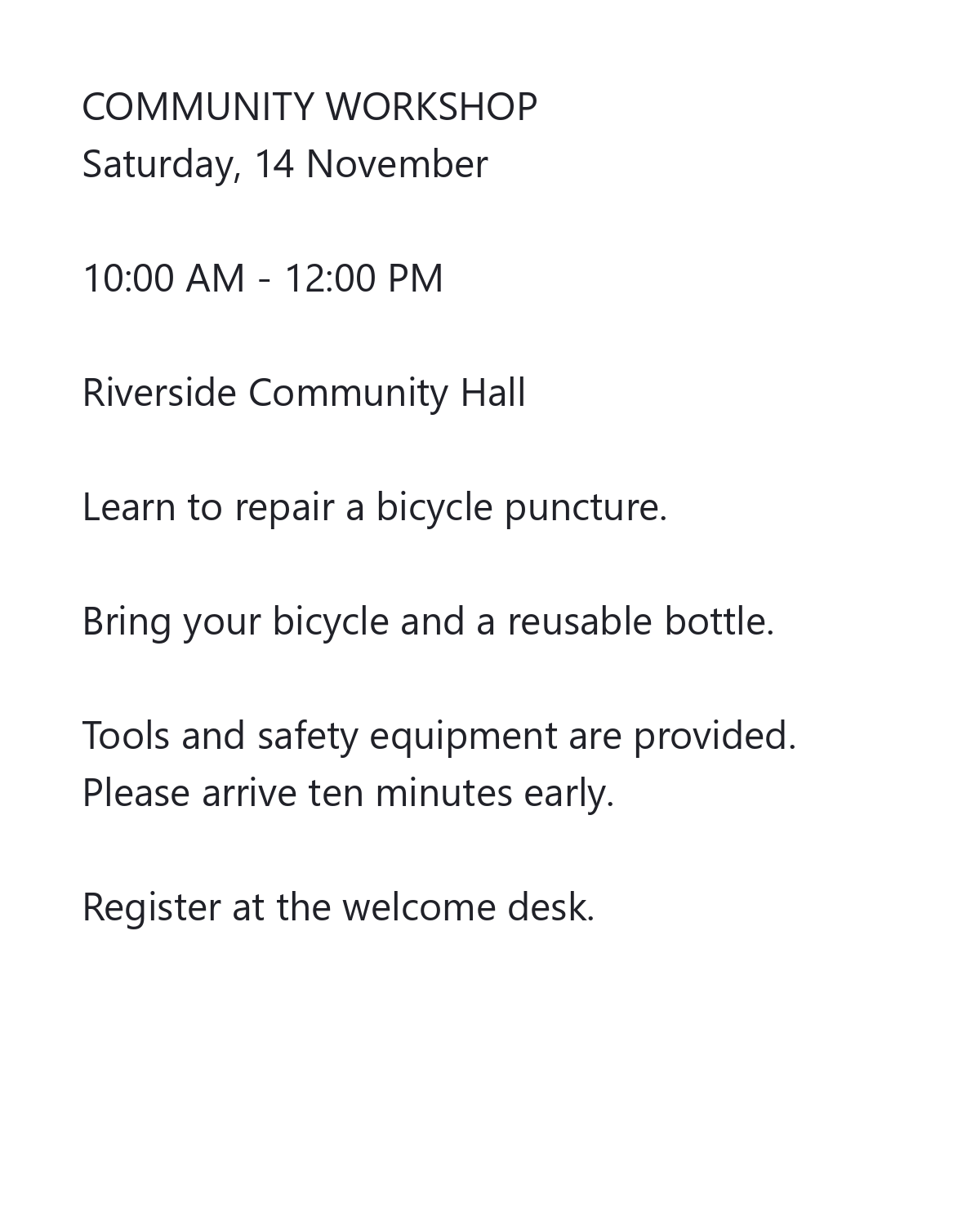
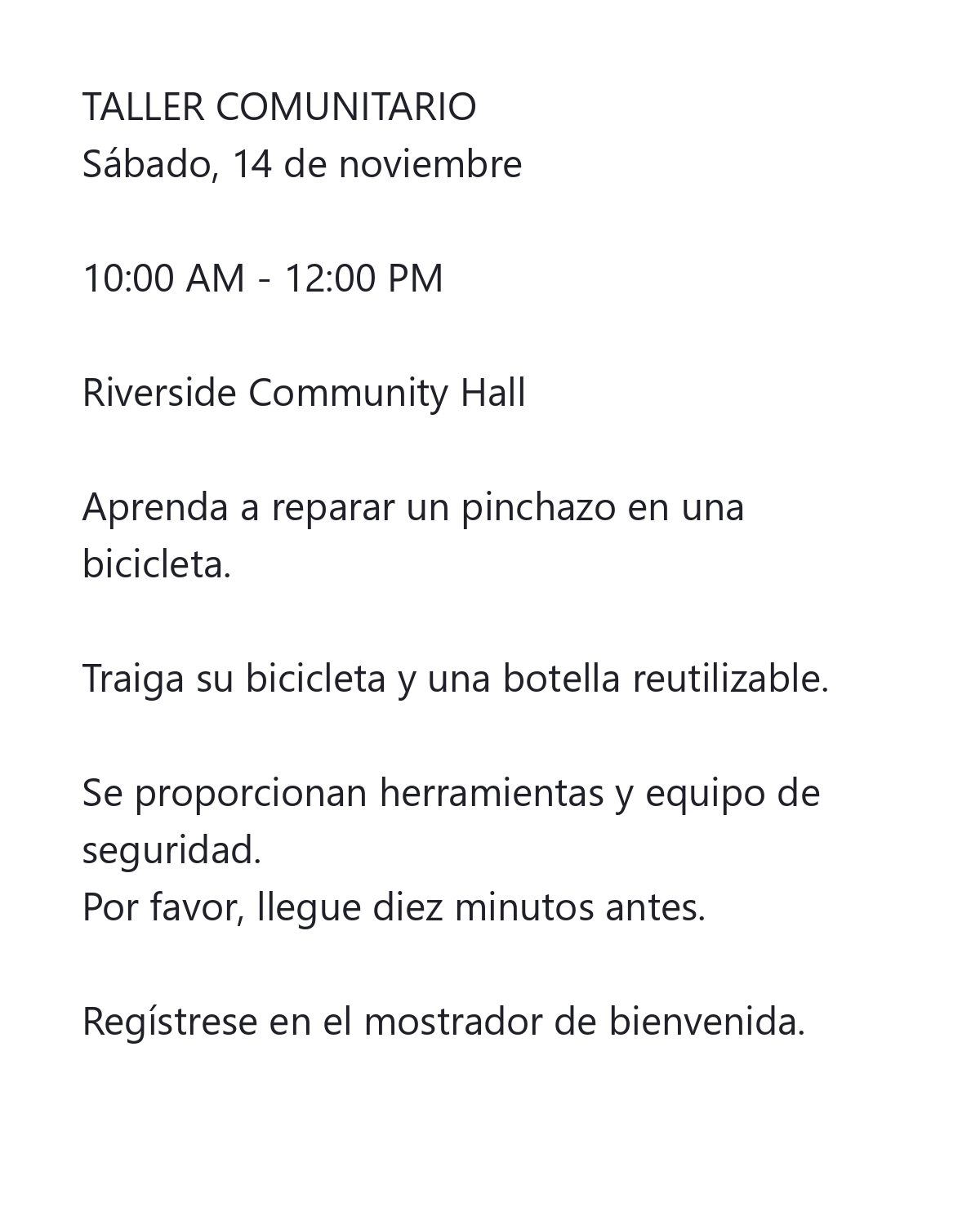

OCR and translation solve different parts of the task. OCR turns writing in an image into text; translation changes that text into another language. This guide follows an English community workshop notice through the Spanish translation workflow after its text has been recognized and checked.
The example translates the checked English workshop notice into Spanish. Its meeting time, location and instructions are compared with the source before the translated text is used.
Start with a checked OCR transcript
Use Image OCR for a photo or scan, or PDF OCR for a scanned PDF page. Select the language written in the source and run recognition. Choose an editable text or Word result so that you can review the words before translating.
Compare the recognized text with the source image. Correct names, dates, times, prices and words broken across lines. Remove unrelated fragments only after confirming that they do not belong to the passage you want to translate.
The OCR language describes the source. The translation target describes the language you want to read. Changing one is not a substitute for choosing the other.
Open the translation dialog and choose the target
Select Translate text beside the OCR result. Choose the destination under Translate to. For the workshop example, the source is English and the destination is Spanish.
The request uses the current editable OCR text, including corrections you have made. Translation supports up to 25,000 characters at a time. For a longer document, work with smaller passages and keep a separate copy of the full transcript.
Changing the target language clears the displayed translation. Check your choice before starting, and copy or save a translation you want to keep before trying another language.
Translate the text, then inspect the result
Select Translate and wait for the result. The dialog displays the returned text in an editable field. Read it in context rather than judging only whether it sounds fluent.
Check the details that must remain stable: names, dates, times, addresses, quantities, references and conditions. For the workshop notice, compare the meeting time and location with the English transcript. Confirm that the translation has not added a requirement or dropped a useful instruction.
You can edit the translated text directly before using it. If a source OCR error caused the problem, return to the main result, correct the source text and translate again. If you are not confident in the destination language, have an appropriate reader review important wording.
Copy the translation or apply it to the result
Choose Copy translation when you want to use the translated wording elsewhere while keeping the main OCR transcript as it is. The checkmark confirms a successful copy.
Choose Use translated text to replace the main editable OCR result with the reviewed translation. Copy or download the source transcript first if you need both language versions. You can then download the translated result as TXT or Word.
For headings, lists or other document formatting, open Smart edit after applying the translation and download the formatted draft there. The translated text does not replace the original page image or rewrite a Classic searchable PDF that was already generated.
Common questions
Can I translate text from both images and scanned PDFs?
Yes. Run Image OCR or PDF OCR first, review the editable text, then open Translate text. For PDF OCR, the source recognition request still handles one page or selected area at a time.
Does Translate text send the image for another OCR run?
No. This action uses the current editable text from the result. Correct any recognition errors before translating so that they are not carried into another language.
Can I keep the original transcript and translation?
Yes. Copy translation leaves the main transcript in place. If you want to use the translated text as the main result, first copy or download the original, then choose Use translated text and save the translated version.
Does the translation preserve the scanned page layout?
No. The translation action returns text. It does not recreate the scanned page with translated words in the same positions. Use Smart edit if you want to format the text into a new document.
Why should I correct the OCR result before translating?
A translation can preserve an incorrect name, number or word from the OCR transcript, or interpret it in an unintended way. Checking the source text first helps you separate recognition mistakes from translation choices.
Make the text useful in another language.
Recognize your source, correct its words, then translate and review them.