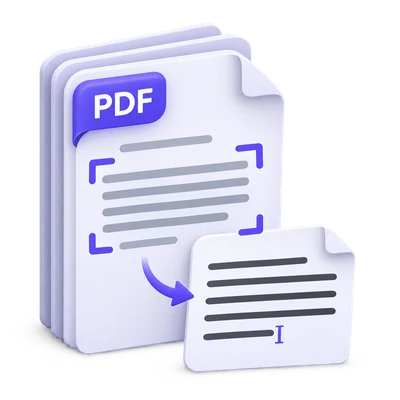
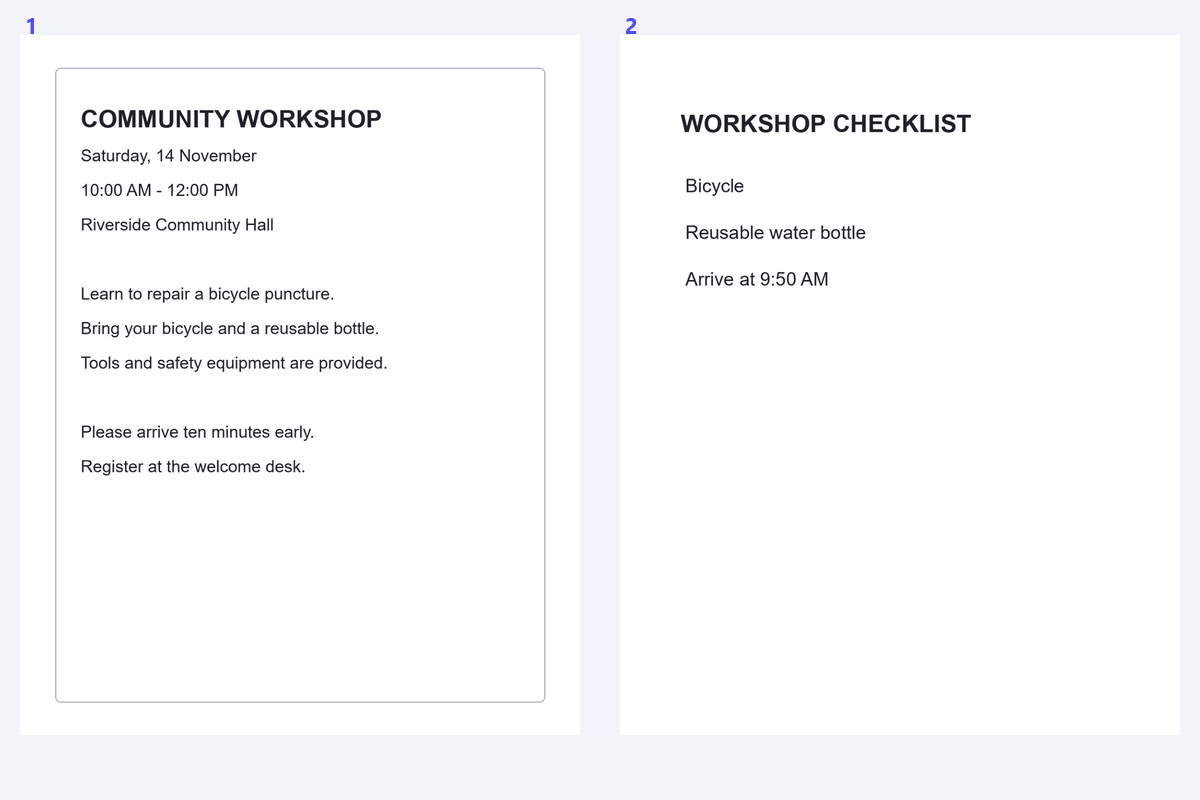
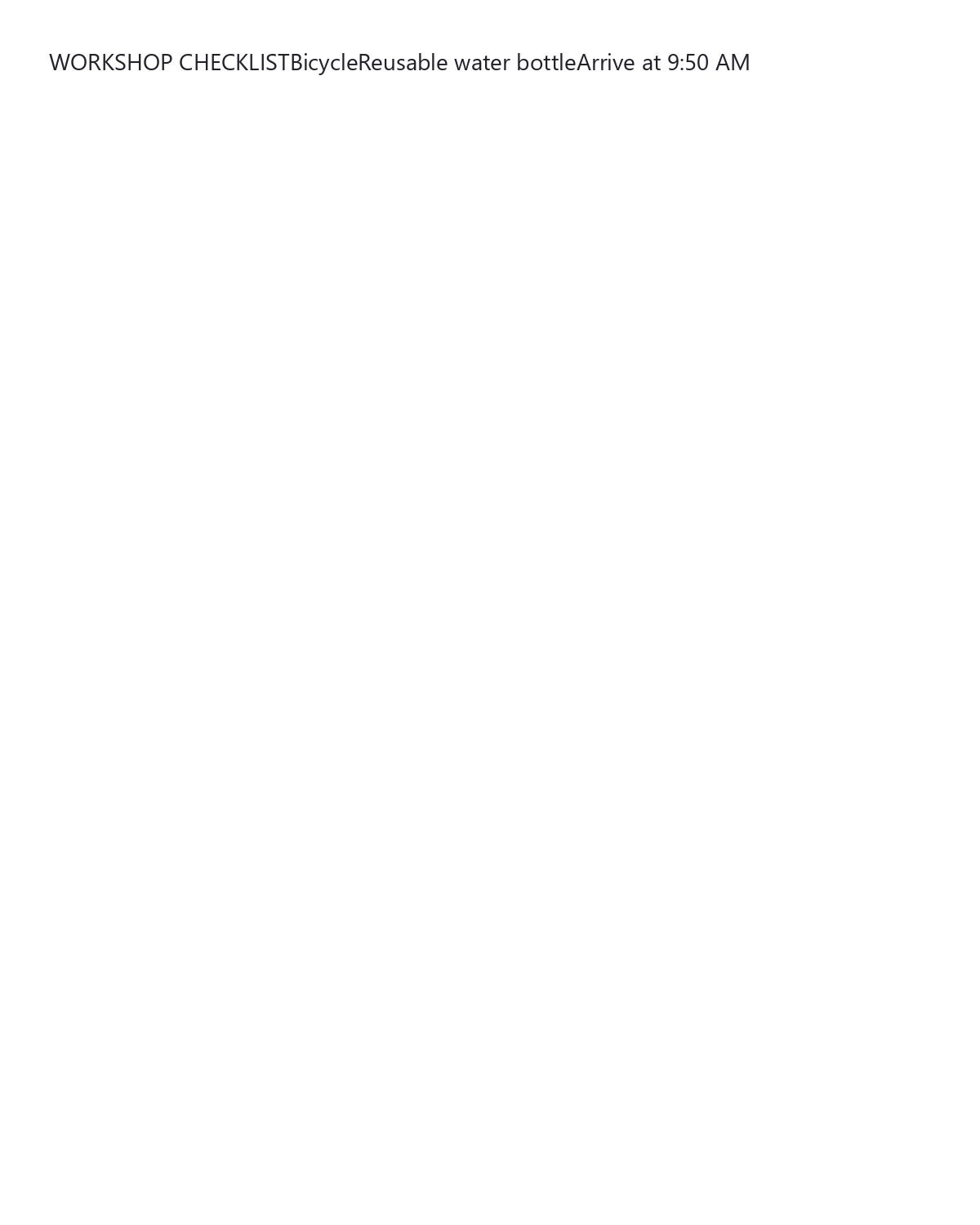

A PDF can look like a normal document while every page is only a picture of text. OCR turns the visible words into a transcript that you can inspect and edit. This guide uses a scanned community workshop document and focuses on one notice page, rather than treating a multipage upload as a request to recognize every page.
Check whether the PDF already contains usable text
Try selecting a sentence in the PDF. If you can copy readable text, PDF to Text may be the simpler starting point. If selection gives nothing, or the copied words are unusable, OCR may help. Check the specific page: a single PDF can mix scans and ordinary text pages.
Open PDF OCR and upload one PDF up to 200 MB and 750 source pages. These are source limits, not the number of pages processed in one recognition request. Use an unlocked copy of a protected document. Complex files may reach memory or processing limits sooner.
Choose the language, page and recognition area
Keep English if it matches the document, or search the 128 recognition languages. The website interface language is a separate choice. Selecting another document language opens its dedicated PDF OCR page.
Navigate to the page you need. Recognize the whole page or draw a rectangle around one passage. Include complete words, punctuation and enough space around the lines. A region can help separate a useful column from nearby material.
Choose Classic or Future where available. For the printed workshop notice, Classic with Single column is a suitable starting point. If you choose Multiple columns, make sure that setting matches the selected content rather than merely the full page. Use the image enhancement controls only when preparation improves the source.
Run recognition and inspect the transcript
Click Start and complete verification. Each request handles the current page or selected area. After it finishes, use the source preview beside the recognized text to check the result.
For the workshop notice, compare the date, time, location and instructions with the scan. Check small punctuation, names and numbers carefully. A wrong character in a reference or amount can look perfectly plausible.
Correct the text directly. To recognize another page, return to the editor, navigate to that page and run a separate request. Keep any result you need before replacing it with a new recognition task.
Do not confuse the number of source pages you can open with the number recognized in one request.
Choose a format that matches the result you need
TXT saves the current plain text. The main Word download creates an editable text document in a new layout; it does not reproduce every source table, picture or column. Both are useful when you want to revise the wording in another application.
Classic's Searchable PDF retains the recognized page or area as an image with the original OCR text layer. It is not an OCR version of every page in the upload, and later text corrections do not rewrite its hidden layer. Future's Simple PDF uses the current text in a new document layout.
Use Smart edit for headings, lists and other supported formatting, then download Word, PDF or HTML directly from that editor. Apply Changes returns plain text to the main result. If you need a translation, correct the transcript first; Translate text uses the entire current text, up to 25,000 characters.
PDF OCR questions
Can I extract just one paragraph?
Yes. Draw or resize a recognition region around it and include complete lines. That request recognizes only the selected area on the current page.
Can I make the whole PDF searchable in one run?
This workflow recognizes one page or selected area per request. Classic's Searchable PDF is based on that recognized area, not every page in the uploaded file.
Does editing the transcript fix a Classic PDF's search layer?
No. The existing searchable layer retains the original recognition. Save corrected wording as text or a new text document when you need your edits in the output.
Should I use Image OCR instead?
Use Image OCR for a photo, screenshot or standalone scan image. Use PDF OCR when the source is a PDF and you need to navigate its pages.
Turn the scanned passage into a checked transcript
Choose the page you need, compare the recognized words and save the right format.