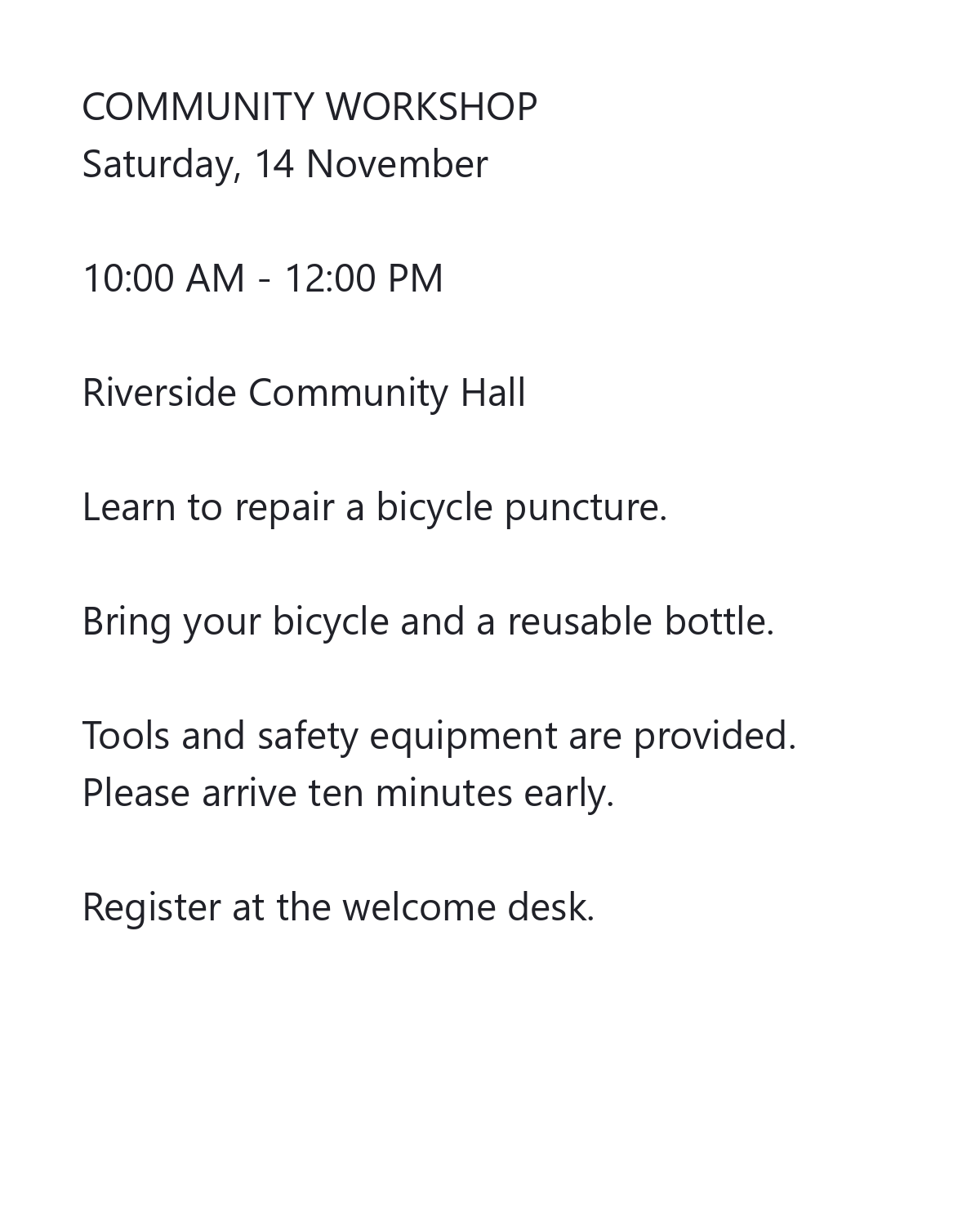
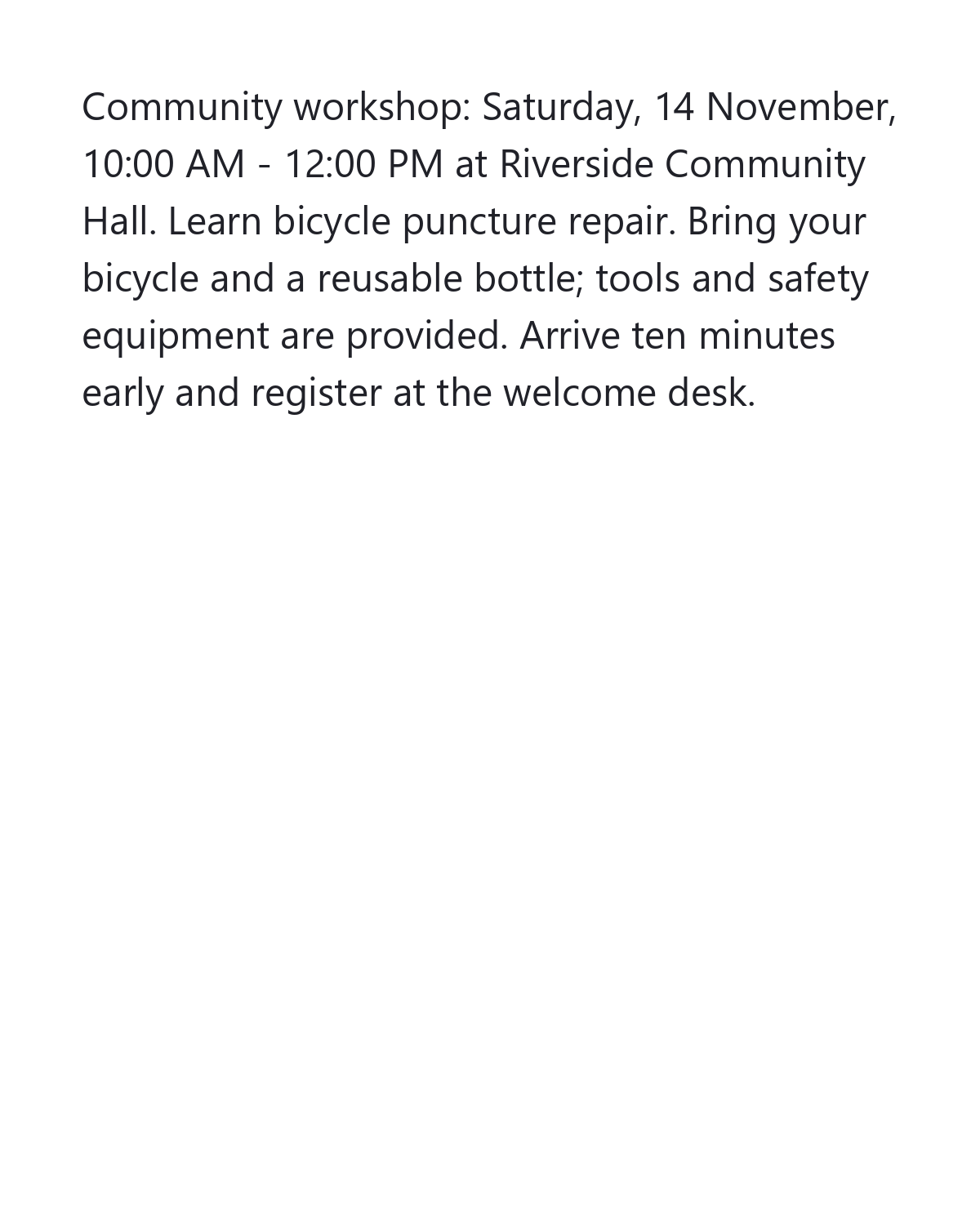

OCR gives you a transcript; the next task may be a summary, a corrected paragraph or a readable handout. Smart edit works on the recognized text from both Image OCR and PDF OCR. The example turns a checked workshop notice into a reviewed summary paragraph.
In the example, the generated summary omitted the instruction to arrive ten minutes early. During review, that detail was restored and the wording was brought closer to the notice before saving. The comparison shows the reviewed version.
Review OCR text before changing its wording
Recognize your source with Image OCR or PDF OCR, using an editable text or Word result. Compare the text with the source before applying a writing action. Fix names, dates, quantities and identifiers that OCR has misread.
Select Smart edit beside the recognized text. The dialog opens with Advanced editor, which provides formatting controls. Use Simple editor when you prefer a plain-text editing surface. Both modes work with the same draft.
A writing action can make an incorrect OCR word sound natural. Correct the transcription first so that a polished sentence does not hide a source error.
Select the text that needs work
Highlight a passage inside the editor to work on that selection. With no selection, the action uses the whole current text. A selected paragraph is useful when only one part needs a shorter version or a grammar check.
For the workshop summary, use the notice text without selecting a smaller passage. The service-backed writing actions accept up to 600 words and 12,000 characters per request. If a transcript is longer, select a shorter passage and work through it in sensible sections.
Choose the action and review its result
Choose an Editing action, then select Apply. The editing result appears in the draft. Review it before saving; a smoother sentence or shorter paragraph still needs to preserve the intended meaning.
Use Undo if a change is not useful. Restore OCR text returns to the starting text kept for this result, so save a copy of an important edited draft before restoring it.
Use formatting where it helps the reader
In Advanced editor, give the document a clear structure with headings, paragraphs and lists. Adjust emphasis, alignment or writing direction when appropriate. Use formatting to clarify the text rather than trying to recreate every detail of the original scan.
The simple editor is useful for direct wording changes. Switching to it works with plain text, so review the document again when rich formatting matters. Keep the source image available for checking any uncertain detail.
Choose the right way to keep your edits
Select Apply Changes to put the edited text back into the OCR result. You can then copy it or use the main TXT or Word download. This applies the words to the result; it is not a command to change the original scan.
To preserve formatting from Advanced editor, use the format selector and Download inside Smart edit. It offers Word (.docx), PDF and HTML, with Word selected initially. The PDF is a new text document, not an edited version of the scanned page image.
Read the saved version once more before sharing it. If your next step is another language, apply the checked text first, then use the translation workflow.
Common questions
Can I edit just one paragraph?
Yes. Select that paragraph inside Smart edit before applying an action. When no text is selected, the action works on the whole current draft. Suggest a title adds its heading above the draft.
Does Smart edit recognize the image again?
No. It works on the recognized text. Use the OCR editor and a new recognition request if you need to change the source page, language, mode or selected image area.
What is the difference between Apply and Apply Changes?
Apply runs the selected editing action in the Smart edit draft. Apply Changes sends the draft text back to the OCR result. Review the draft between those two actions.
How do I keep the formatting from Advanced editor?
Download Word, PDF or HTML from inside Smart edit. Applying changes to the main OCR result returns text; the main text box does not carry all of the rich formatting from the document editor.
Why does a writing action ask for a shorter passage?
Summarize text, Paraphrase text, Fix grammar and Suggest a title accept up to 600 words and 12,000 characters per request, with an additional byte bound. Select a smaller coherent section and try that. The two local cleanup actions do not use that remote writing service.
Make the text serve its next purpose.
Recognize your source, check it, then prepare the draft you actually need.