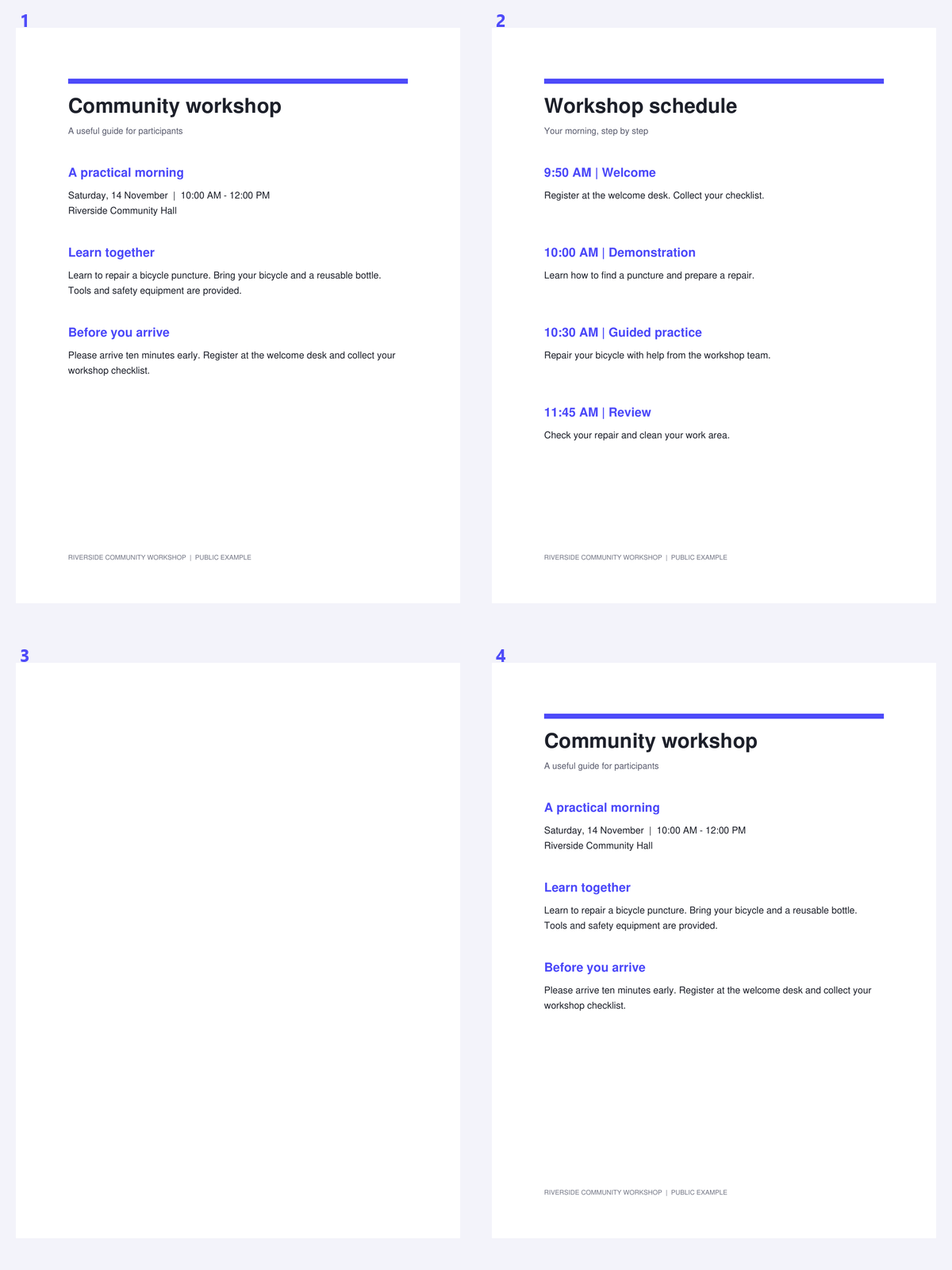
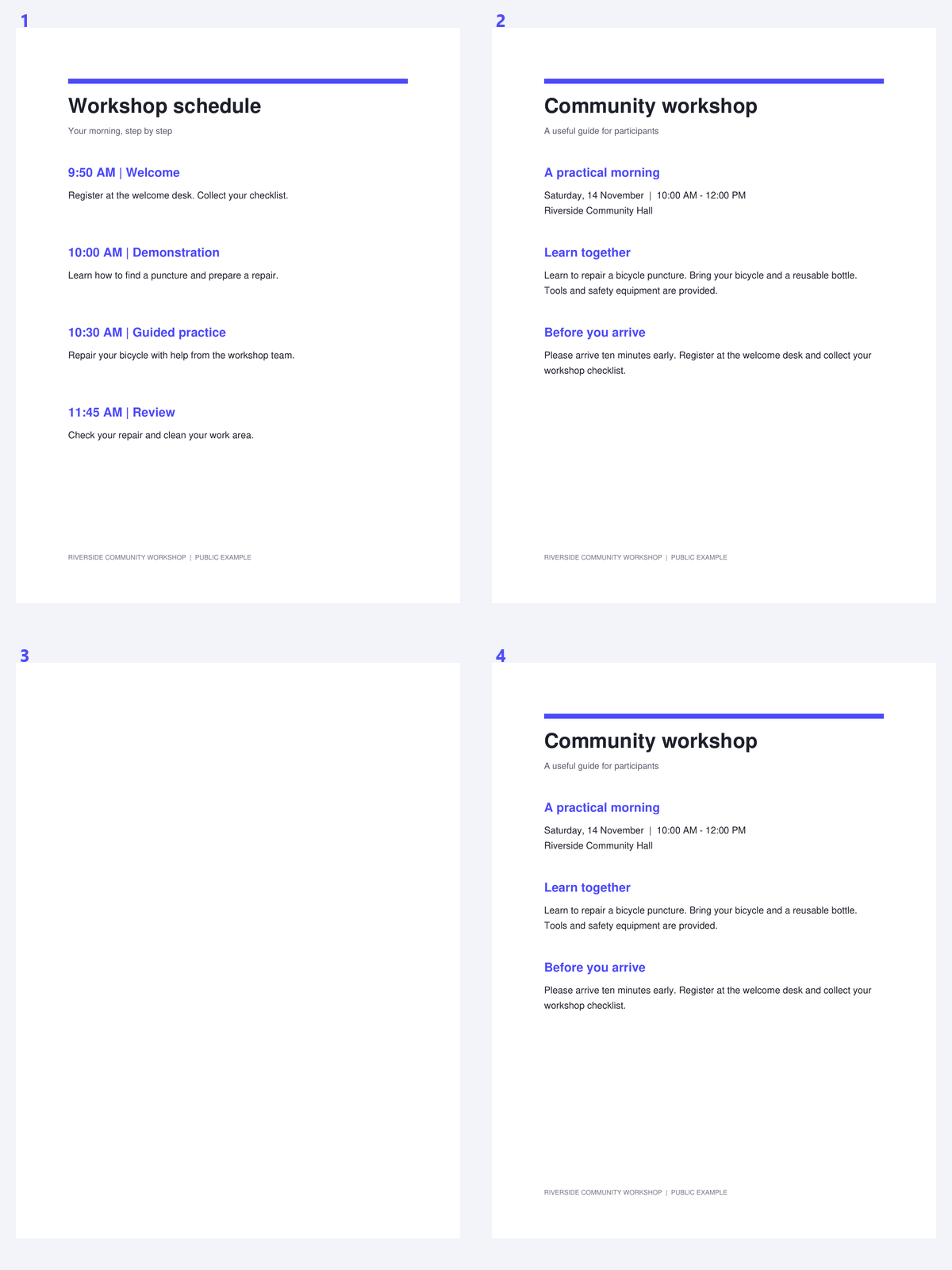

A mixed scan packet is easier to recognize and review when its pages have a deliberate order. Organize PDF lets you work at page level across several source files. The most important rule is that every page left on the board exports, whether or not it is currently selected.
The example uses a public workshop packet whose schedule is moved to the beginning. Compare the source order with the downloaded sequence and check which page now introduces the packet.
Load the source PDFs and inspect the board
Open Organize PDF and add the files that belong in the packet. Use the source markers to distinguish a notice, schedule or supporting checklist.
Begin with a clear reading order in mind. A packet for OCR should keep related pages together so that the recognized text can later be checked against its source context.
Move and edit the selected pages
Select a page or group, then drag or use the move controls to place it where it belongs. Rotate sideways pages and remove material that should not be in the final packet.
Use duplication only when a repeated page is intentional. Undo and redo let you review an arrangement without losing track of earlier steps.
Review unselected pages before export; they are still part of the board.
Review the whole board and create the PDF
Inspect every remaining page, including those that are not selected. Selection controls editing actions; it does not limit which pages will be exported.
Choose a useful output filename and click Start. The tool copies native page content into a new PDF, while flattening form appearances and omitting document features such as source bookmarks and attachments.
Use Merge PDF when whole-document ordering is enough and individual page edits are unnecessary.
Download and check the final sequence
Download the result and review the first page, section transitions and the last page. Confirm that a copied or rotated page appears where you intended.
Continue to PDF OCR for scanned pages, or PDF to Text for an existing text layer. Keep source files if you may need their original bookmarks, form interaction or attachments.
Common questions
Are only selected pages exported?
No. All pages left on the board are exported. Selection determines which pages an editing action changes.
Can I combine pages from several PDFs?
Yes. Add the source files and arrange their pages together. Loaded-file, combined-byte and source-page limits apply to the workspace.
Can I undo an accidental move or deletion?
The workspace provides undo and redo for recent editing states. Review the board before exporting and keep the original source files.
Will interactive forms and bookmarks be preserved?
Existing form appearances are flattened. Source bookmarks, attachments and interactive actions are not preserved in the newly assembled PDF.
Prepare your next document with Organize PDF.
Review unselected pages before export; they are still part of the board.