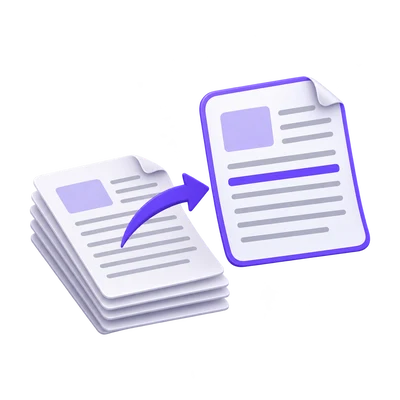

A long PDF can contain only a few pages worth recognizing or sharing. Extracting those pages first creates a smaller, easier-to-review document without reducing their image detail. This workflow focuses on selecting the right PDF positions and checking the output sequence before continuing.
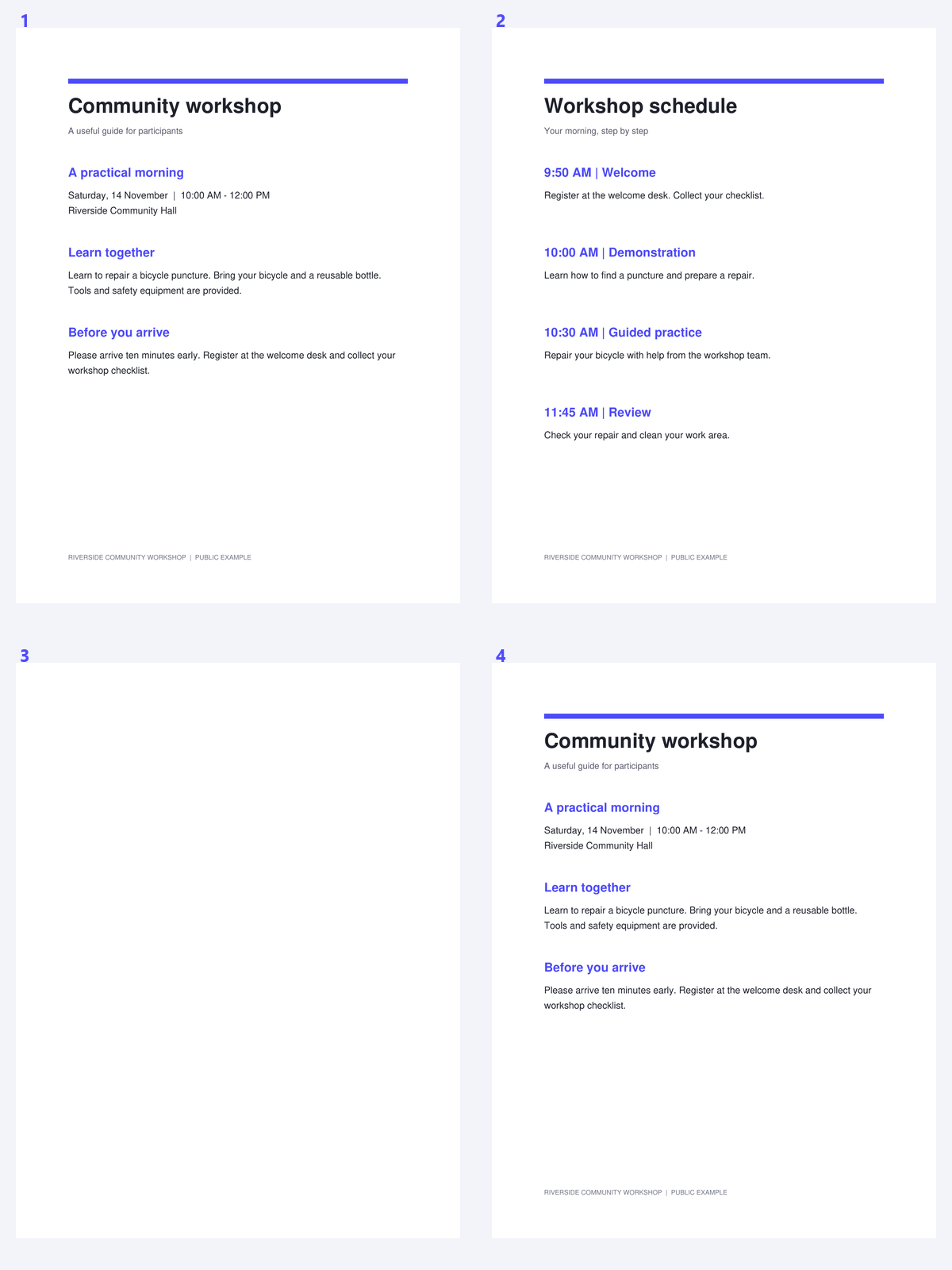
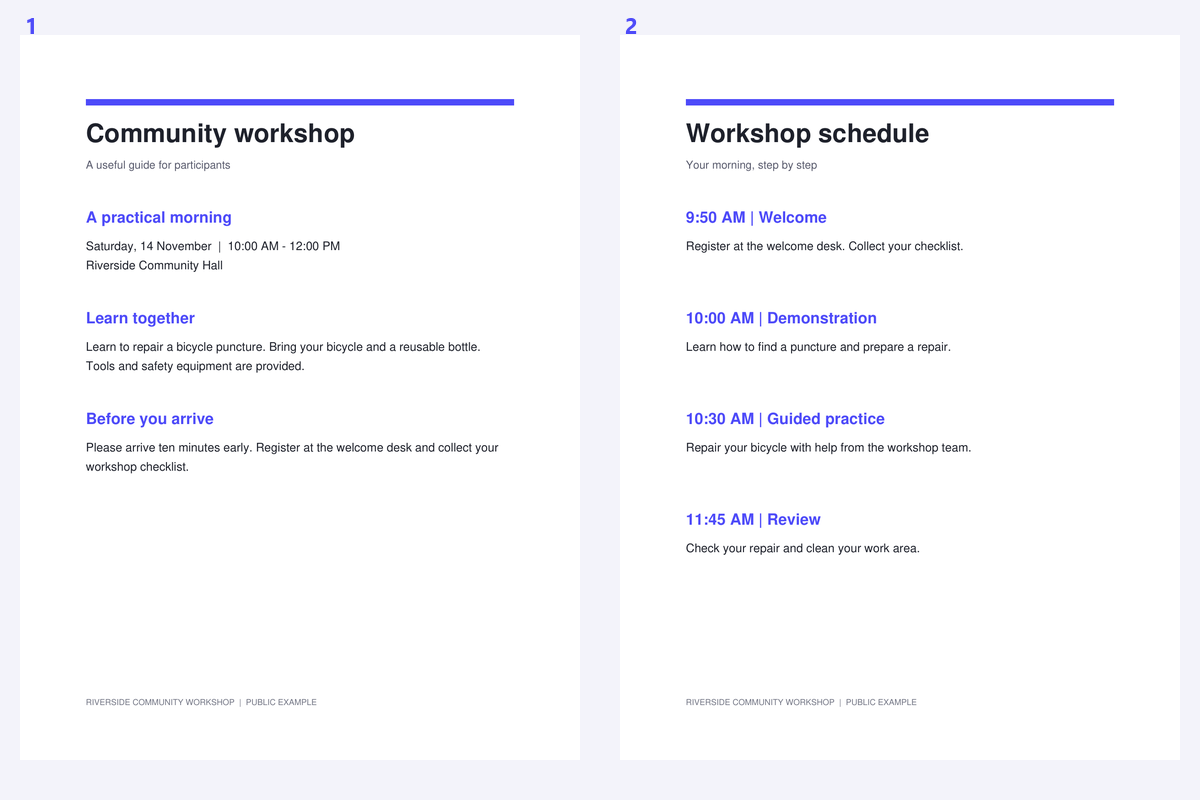
The example uses a public workshop packet containing several kinds of pages. Compare the selected content with the smaller output document and verify the actual page sequence.
Find the pages that belong in the smaller document
Open Extract Pages from PDF and load the source. Browse the thumbnails and identify the actual PDF positions of the pages you need.
Printed page labels may not match those positions. Check a cover, blank separator or appendix before entering a range based on numbers printed on the page.
Select pages or apply a range
Click the relevant thumbnails, use the quick-selection controls, or enter a range such as 1-3, 5. Apply the range and confirm the selection.
Use an explicit order when needed. A descending range reverses that span, while repeating a page reference does not add another copy. Use Organize PDF when you intentionally need duplicates.
Verify PDF positions when the source has covers or unnumbered pages.
Arrange and create the extracted PDF
Move the selected pages into the intended reading sequence. Review the count and make sure the selection includes at least one page.
Click Start to create a new PDF from the selected source pages. This page operation preserves native content rather than making a raster screenshot of each page.
Extract before heavy scan processing when only a few pages actually need it.
Download and continue with the relevant task
Download the result and check the sequence and page content. Keep the original for reference to omitted sections.
Continue with PDF OCR if the selected pages are scans. If they already contain usable text, PDF to Text can export that text without another recognition pass.
Common questions
Can I extract pages in a different order?
Yes. Review and arrange the selected sequence before export. Range order, including a descending range, can also determine the requested order.
Can the same page appear twice?
Repeated range references are deduplicated in this tool. Use Organize PDF when you want to duplicate a page deliberately.
Does extraction lower image quality?
The selected PDF pages are copied rather than rasterized or downsampled. Inspect the result if forms, links or other document features are important.
Can selecting fewer pages bypass the source limit?
No. The full source PDF must load successfully and meet the tool’s input limits before pages can be extracted.
Prepare your next document with Extract Pages from PDF.
Verify PDF positions when the source has covers or unnumbered pages.