
Covers, obsolete inserts and accidental blank scans can make a document harder to review. Removing them is a page-selection task, not an image-processing task. The main risk is simple: selecting what you want to keep when the tool expects what you want to delete. Review the marked pages before creating the result.
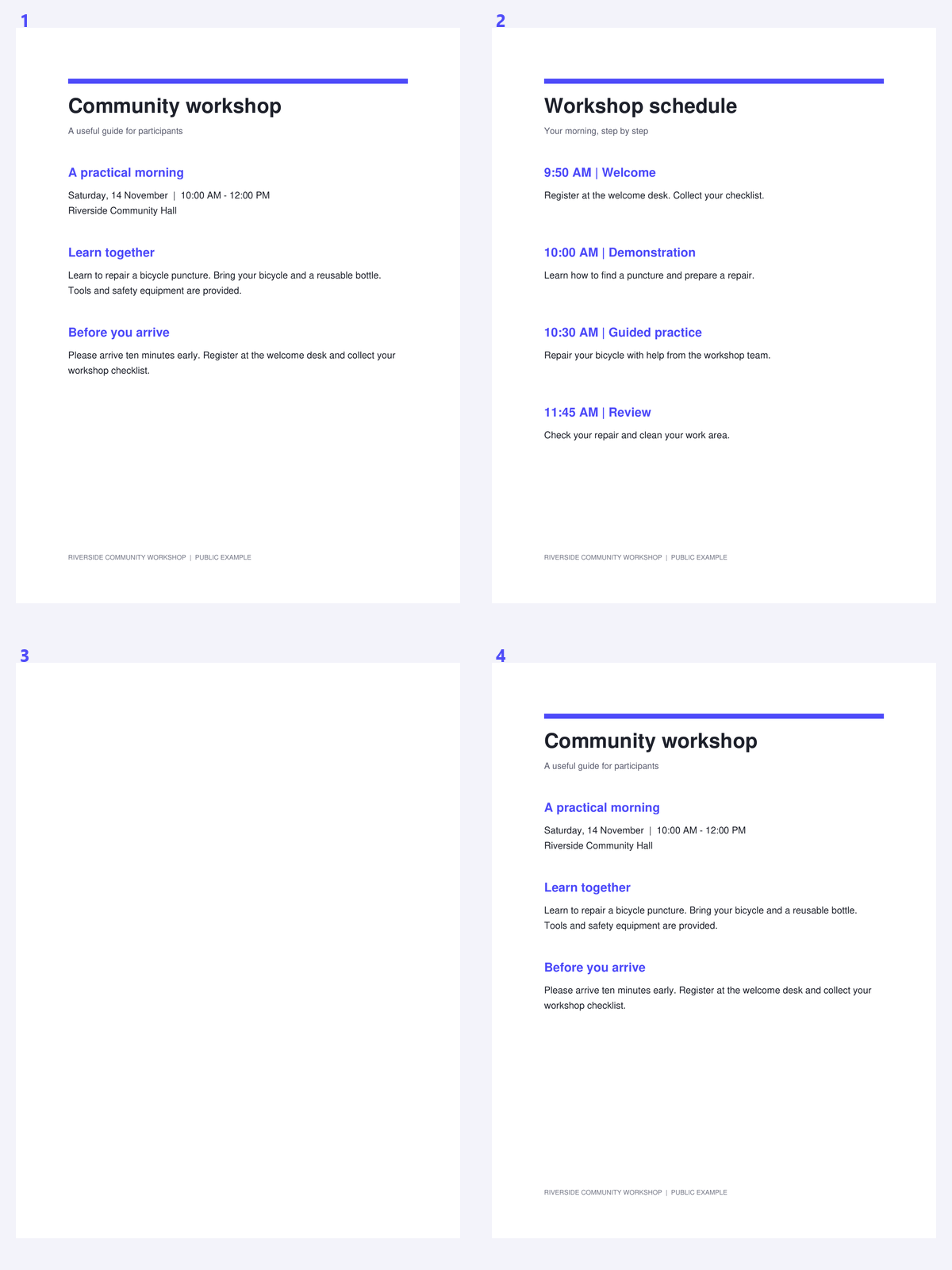
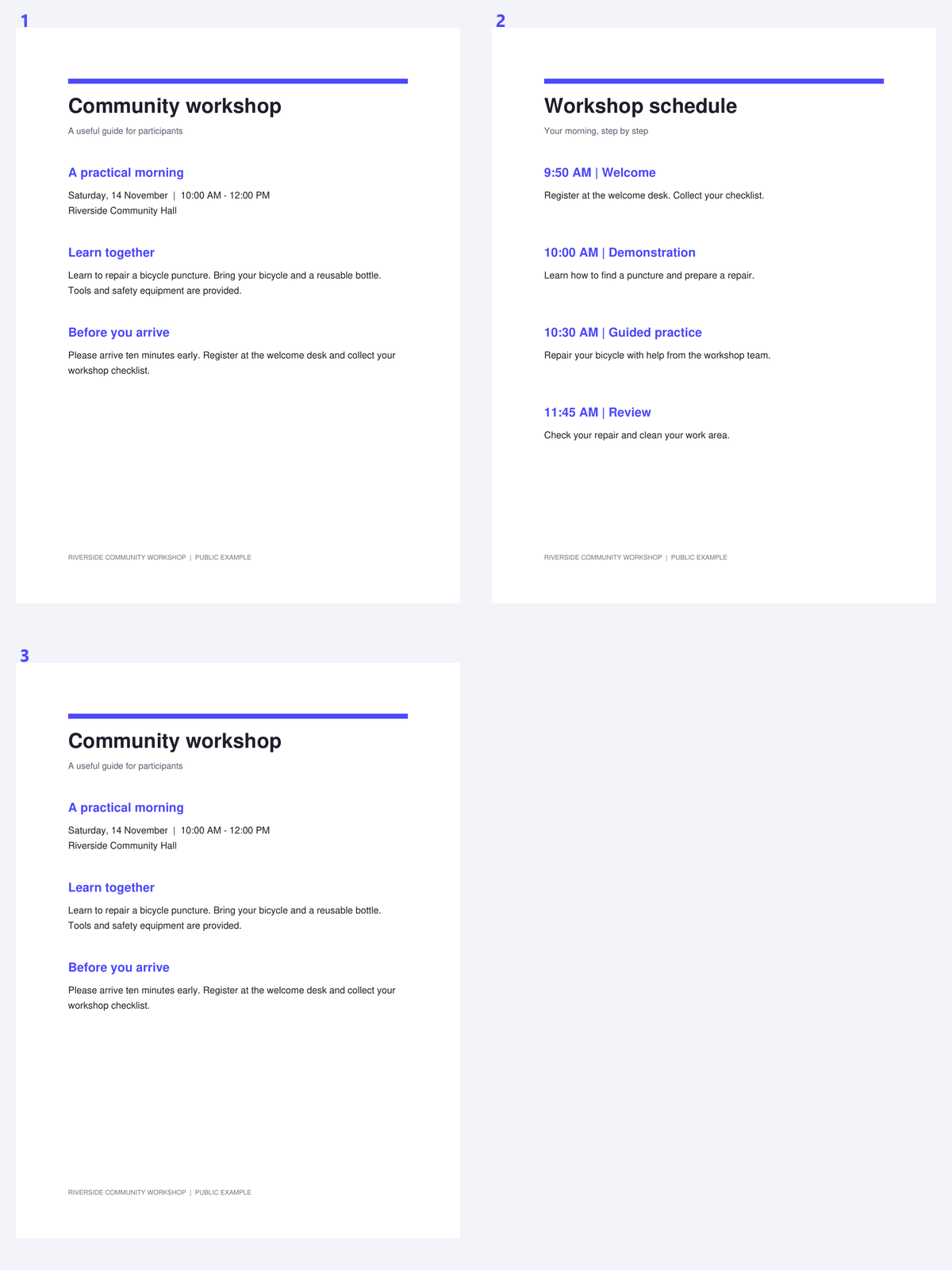
The example uses a public workshop packet with an unwanted separator. Compare the source and retained sequence, checking the content on either side of the removed page.
Open the source and identify unwanted pages
Open Remove Pages from PDF and choose the document. Browse the pages before making changes so you know which positions should be removed.
A blank-looking page is not always expendable. Check for a small signature, a faint annotation or a deliberate divider in a scanned record.
Mark the removal selection
Select the pages to delete, using the available page-selection controls. Check that the marked set describes what you do not want in the result.
If most pages should disappear, Extract Pages may be easier because you can choose the few pages to keep instead. Leave at least one page in the document.
Check nearly blank pages for signatures and faint notes.
Create the shorter PDF
Review the removal selection once more, then click Start. The remaining pages are copied in their original order rather than being rendered as new page images.
The operation does not rewrite printed page numbers or repair references to removed sections. It only creates the new page sequence.
Use Extract Pages when choosing the small retained set is clearer than marking many deletions.
Download and inspect the retained packet
Download the PDF and check the pages around each removed section. Confirm that the relevant text and any necessary supporting page remain together.
Continue with PDF OCR for the scans you still need to recognize. Keep the original file when omissions could affect how a passage is interpreted.
Open Extract Pages From PDF · Open Remove Blank Pages From PDF
Common questions
Am I selecting pages to keep or to remove?
In Remove Pages, mark the unwanted pages. The output contains the remaining pages. Use Extract Pages when you prefer selecting what to keep.
Can I delete every page?
No. At least one page must remain in a valid result.
Will the other pages be reordered?
No. Retained pages stay in their original sequence. Use Organize PDF for reordering or duplication.
Are printed page numbers updated?
No. Removing page positions does not rewrite numbers or references inside page content. Review those separately.
Prepare your next document with Remove Pages from PDF.
Check nearly blank pages for signatures and faint notes.