
Scanning
Remove empty feeder sheets
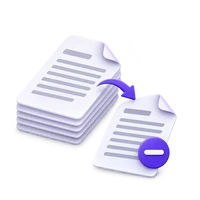
Review blank backs from a document scan.


Find blank-looking pages in a PDF and review them before removal. Choose a tolerance for scan noise, keep meaningful faint pages and save the remaining document as a separate copy.
Checked pages will be removed. Click a thumbnail to preview its page.
Download your result or go back to make changes.
Open Remove Blank Pages from PDF and load the document. Inspect a known empty sheet and a faint content page before choosing a tolerance.
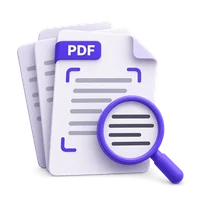
Choose Find blank pages. The page list marks the suggested removals so you can inspect them rather than deleting blindly.
Choose Start, download the result and compare it with the original. Use the lightest tolerance that solves the actual scan-noise problem.
Find blank-looking pages in a PDF and review them before removal. Choose a tolerance for scan noise, keep meaningful faint pages and save the remaining document as a separate copy.
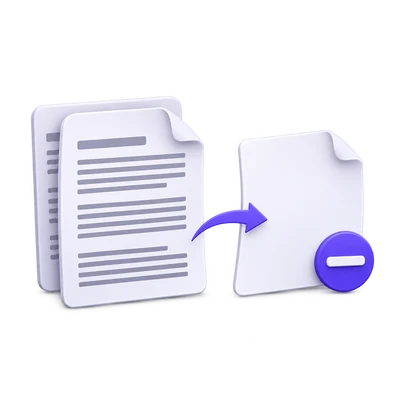
Review blank backs from a document scan.
Keep a page with only a signature or small note.
Remove confirmed empty pages before reviewing the text-bearing pages.
Distinguish a truly empty page from a noisy scanner background.
Strict is conservative about visible marks. Light noise and Scan noise allow more small background variation when deciding which pages look blank.
Use the lightest tolerance that identifies the unwanted sheets. A more permissive setting can classify a faint meaningful mark as noise.
Run Find blank pages, then review the marked thumbnails.
The detector considers rendered appearance and existing page text, and avoids treating form-widget pages as ordinary empty sheets. It does not understand the purpose of a separator or handwritten mark.
Open a suggested page at a readable size before removing it. A nearly blank page can still matter to the record.
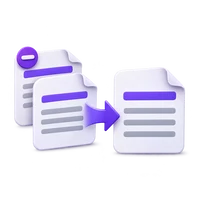
Change the keep or remove choice for individual pages.
Use the per-page controls to retain a page that should stay or mark another page for removal. Inspect the count before creating the output.
Changing tolerance can change the suggestions, so review again after a new analysis. Do not assume a previous set of selections still describes the same pages.
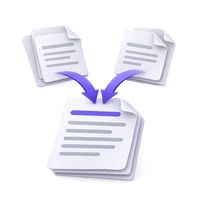
The result keeps the useful pages in their original order.
If no page needs removal, the tool can return an unchanged copy. If every page is marked, it keeps the first page rather than creating an empty PDF.
Retained pages are copied rather than rasterized for export, while form appearances are flattened. Keep the original when the document’s structure or interactive features matter.
Open one PDF up to 100 MB and 750 source pages. The full source must meet these limits even when you export a subset. Large or complex files can reach browser-memory or processing limits earlier.
Document processing takes place in your browser without uploading the PDF for this operation. Save the result and keep the original separately. Choosing a server-based next tool starts a separate processing step.
Know what to expect before you start.
On your deviceYes. A permissive noise tolerance can overlook small or faint marks. Review every suggested removal and keep pages that carry useful information.
The tool retains the first page rather than creating an empty PDF. Review the result before deciding whether the source really contains no useful content.
If no pages are removed, the tool can return an unchanged copy. It does not force a deletion just to produce a different result.
No. It changes the page set. Run PDF OCR separately for image-only pages whose text you need.