
Office
Remove repeated inserts
Clean a packet assembled from overlapping sources.


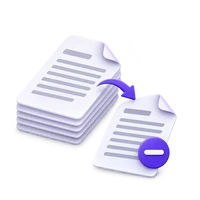
Find matching pages in a PDF and review which copies to keep. Choose the first or last copy as a starting point, inspect each group and save a document without unnecessary repeats.
Checked pages will be removed. Uncheck a copy to keep it; at least one copy in each group stays.
Download your PDF or go back to adjust which copies to keep.
Open Remove Duplicate Pages from PDF and upload the document. Choose Keep first or Keep last as the starting preference for matching groups.
Choose Find duplicates and wait for the comparison. Review each group in the preview, checking that the pages really are interchangeable for your purpose.
Choose Start, download the result and compare it with the original. A repeated page can be intentional; review its role in the reading sequence.
Find matching pages in a PDF and review which copies to keep. Choose the first or last copy as a starting point, inspect each group and save a document without unnecessary repeats.
Clean a packet assembled from overlapping sources.
Review exact matching pages without discarding merely similar scans.
Recognize one retained copy when a duplicate adds no useful context.
Compare page appearance together with geometry and existing text.
The tool checks more than a thumbnail. It compares page geometry, text information and rendered appearance, then confirms candidate groups at a higher rendering resolution.
Two scans of the same paper may differ through noise, skew or compression and therefore may not match. This is not a fuzzy search for similar topics or wording.
Start with the first or last copy in each matching group.
Keep first is the initial preference; Keep last can be useful when later copies are the ones you want to retain. Review the suggested removals before export.
You can adjust choices within a group, but at least one copy must remain. A matching page is not automatically unnecessary in every reading sequence.
Some pages are excluded from automatic suggestions.
Pages with annotations or optional content layers are protected because an identical-looking picture may conceal different comments, links, form values or layers.
If a page is not suggested, do not assume the tool failed to see it. Use a manual page-removal workflow only after you have checked the differences that matter.
Keep native content and verify references after removing copies.
The output removes chosen duplicate page objects and redirects references from a removed copy to a retained member of its group. It does not rasterize every retained page.
Check the resulting order and any important links or references. If you keep every page, the tool can return the original bytes unchanged.
Open one PDF up to 100 MB and 750 source pages. The full source must meet these limits even when you export a subset. Large or complex files can reach browser-memory or processing limits earlier.
Document processing takes place in your browser without uploading the PDF for this operation. Save the result and keep the original separately. Choosing a server-based next tool starts a separate processing step.
Know what to expect before you start.
On your deviceNot necessarily. Matching is conservative and includes pixel, text and geometry checks. Noise, skew or different marks can prevent a match.
Annotations and optional layers can carry differences that are not apparent in a simple page picture. Those pages are excluded from automatic duplicate suggestions.
Yes. Start with Keep first or Keep last, then review the group choices. At least one page must remain in each group.
It removes selected duplicate page objects rather than rasterizing the retained pages. Review the saved document’s order and important references.