
Office
Remove obsolete inserts
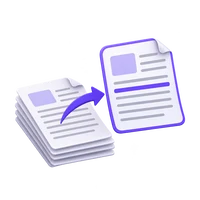
Keep the current pages in a tidy packet.


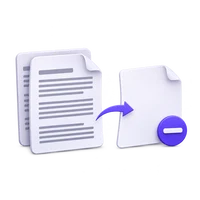
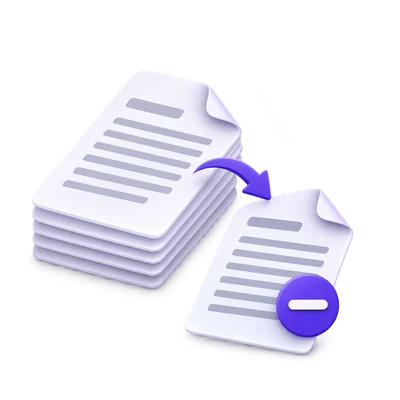
Remove pages that do not belong in the document you want to use. Review the unwanted pages, keep at least one page and save a separate PDF containing the rest in their original order.
Use the page controls to inspect your document.
Save your result or return to adjust the settings.
Upload one PDF from your device.
Review the available settings, then start processing.
Save the result and check it before sharing.
Remove pages that do not belong in the document you want to use. Review the unwanted pages, keep at least one page and save a separate PDF containing the rest in their original order.
Keep the current pages in a tidy packet.
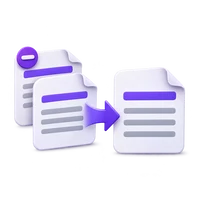
Remove irrelevant sections without changing the order of the rest.
Keep only the pages that belong in the transcription task.
Treat selection as deletion rather than as an export list.
Remove Pages saves the pages that are left after deletion. Check the removal state carefully when switching from Extract Pages, where selected pages are the ones you keep.
Inspect the page itself before marking it. A page that looks mostly blank can contain a signature, a faint note or a useful separator.
Delete unwanted pages without rearranging the rest.
The retained pages stay in their source order. This is useful for removing a cover, an obsolete insert or a few irrelevant pages from a packet.
Use Organize PDF when the remaining pages also need reordering or duplication, or Extract Pages when it is easier to specify the short list you want to keep.
Native PDF content is copied into the result.
Removing pages does not sharpen, brighten or recognize the pages that remain. It also does not resample their images just to perform the deletion.
Use a scan-preparation tool only for pages that need it, then continue to PDF OCR if the remaining content is image-only.
A shorter packet can still contain references to omitted pages.
Deleting page positions does not rewrite the page numbers printed inside the document. Cross-references and a table of contents may need a separate review.
Download the new copy and inspect its beginning, end and the pages either side of a deletion. Keep the original in case the omitted material becomes relevant.
Open one PDF up to 300 MB and 750 source pages. The full source must meet these limits even when you export a subset. Large or complex files can reach browser-memory or processing limits earlier.
Document processing takes place in your browser without uploading the PDF for this operation. Save the result and keep the original separately. Choosing a server-based next tool starts a separate processing step.
Know what to expect before you start.
On your deviceIn Remove Pages, mark the unwanted pages. The output contains the remaining pages. Use Extract Pages when you prefer selecting what to keep.
No. At least one page must remain in a valid result.
No. Retained pages stay in their original sequence. Use Organize PDF for reordering or duplication.
No. Removing page positions does not rewrite numbers or references inside page content. Review those separately.