
Office
Join related paperwork
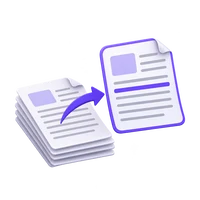
Place a notice before its checklist or supporting pages.


Combine documents into one PDF, exactly your way.
Add PDFs, arrange their order, then refine individual pages below the preview. Processing stays on your device. Filled form values are preserved as page content.
Drag documents into order. Keep every page, or choose a range from each file.
Add PDFs, or undo to bring your pages back.
Tip: use Alt + arrow keys to move a focused card. Ctrl/⌘ + Z undoes your last change.
Your documents, arranged in one PDF. Preview the result or download it below.
Choose multiple PDFs, or start with one and add more in the workspace.
Arrange documents, choose pages, and pick a merge order.
Choose Start, then preview or download your new PDF.
Combine related PDFs into one ordered document. Arrange the source files, choose page ranges and review the sequence before creating a packet for reading, sharing or OCR.
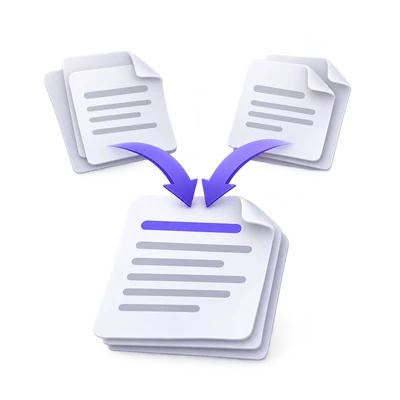
Place a notice before its checklist or supporting pages.
Interleave verified page sequences from separate passes.
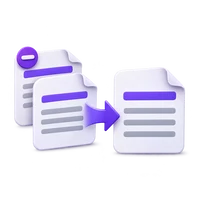
Combine related source PDFs in a deliberate order.
Choose the order of the source PDFs.
Move the document cards into place or use filename sorting when the names provide a reliable order. Check the output sequence rather than relying only on filenames.
Manual rearrangement gives you control when a notice, checklist and appendix need an order different from the directory listing.
Set a page range for a document before it is merged.
A source PDF can contribute just the relevant pages. Range order can also reverse a sequence when the source was scanned backwards.
Rotate a whole source document when it needs a consistent orientation correction. Use Organize PDF for individual page moves or rotations that are more complicated.
Alternate pages when the sources represent paired fronts and backs.
Alternating-page merge can help combine separately scanned sides. Arrange and, when necessary, reverse the source order so each back follows its intended front.
Review the output sequence carefully, especially with uneven source lengths or a missing side. The tool cannot know which scanned pages belong together.
Assemble pages without reducing them to screenshots.
The merged PDF copies native page content in the selected sequence. Existing text can remain selectable and source images are not resampled simply because files are joined.
The new document does not retain every source-level feature. Form appearances are flattened, and bookmarks, attachments and interactive actions are omitted.
Add up to 25 PDFs, with 300 MB combined and 750 loaded source pages. Removed or undone source material still counts until you start a new session. The generated sequence remains subject to available memory and processing limits.
Document processing takes place in your browser without uploading the PDF for this operation. Save the result and keep the original separately. Choosing a server-based next tool starts a separate processing step.
Know what to expect before you start.
On your deviceYes. Choose useful page ranges for the source documents and review the resulting sequence before export.
Alternating-page mode can interleave the sources. Check their order and every pairing; the tool cannot infer which front belongs with which back.
No. It combines page content. Use PDF OCR afterward when the source pages lack usable text.
The new merged document omits source bookmarks, attachments and interactive actions. Existing form appearances are flattened; keep originals when these features matter.