
Research
Collect relevant passages
Create a short source packet for focused recognition or review.


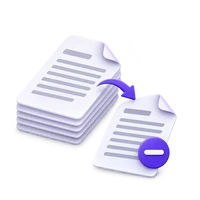
Save only the PDF pages you need. Select thumbnails or enter a range, arrange the selected pages and create a focused document without converting the pages into images.
Click or tap a page card to select it. Tap again to deselect.
Download your new PDF, or return to change the selection and order.
Open Extract Pages from PDF and load the source. Browse the thumbnails and identify the actual PDF positions of the pages you need.
Click the relevant thumbnails, use the quick-selection controls, or enter a range such as 1-3, 5. Apply the range and confirm the selection.
Choose Start, download the result and compare it with the original. Verify PDF positions when the source has covers or unnumbered pages.
Save only the PDF pages you need. Select thumbnails or enter a range, arrange the selected pages and create a focused document without converting the pages into images.
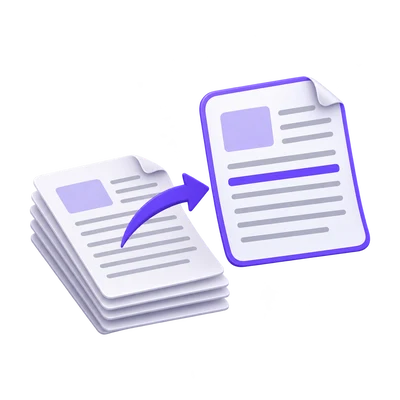
Create a short source packet for focused recognition or review.
Separate an appendix or a small set of forms.
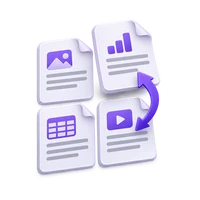
Arrange selected pages in the order you want to read them.
Use the thumbnails to select the material that belongs together.
Select the pages you need and inspect the selection count. All, odd, even, invert and clear controls help with larger documents.
A selection is not a recognition region within a page. If you need only one passage, extract the page first and select the OCR area later.
Use explicit page numbers when you already know the source positions.
Ranges can name individual pages and spans. A descending range can request a reverse order; repeated page references are included only once.
The numbers refer to positions in the PDF, not printed labels. Review the thumbnails after applying a range, especially when the document has a cover.
Change the order before creating the new PDF.
Move selected pages into the reading sequence you want. This is useful when scans were collected out of order or a short packet needs an introduction before its evidence pages.
Inspect the first and last selected pages, then check the sequence between them. Export uses the selected order rather than silently restoring the original order.
Create a new PDF without rendering every page as a picture.
Extraction copies the selected PDF pages. Existing text can remain selectable and source images are not downsampled as part of the page selection.
A smaller page set can be easier to review or pass to another tool, but the full source still has to satisfy the initial upload and loading limits.
Open one PDF up to 300 MB and 750 source pages. The full source must meet these limits even when you export a subset. Large or complex files can reach browser-memory or processing limits earlier.
Document processing takes place in your browser without uploading the PDF for this operation. Save the result and keep the original separately. Choosing a server-based next tool starts a separate processing step.
How selection, page order and the new PDF work.
On your deviceYes. Review and arrange the selected sequence before export. Range order, including a descending range, can also determine the requested order.
Repeated range references are deduplicated in this tool. Use Organize PDF when you want to duplicate a page deliberately.
The selected PDF pages are copied rather than rasterized or downsampled. Inspect the result if forms, links or other document features are important.
No. The full source PDF must load successfully and meet the tool’s input limits before pages can be extracted.