
Office
Build a coherent packet
Move notices, schedules and evidence into a deliberate sequence.


Mix, reorder, rotate, and remove pages across multiple PDFs.
All pages start selected. Deselect pages to leave them out, drag cards to reorder, and rotate the selected pages. On touch screens, hold and drag a card; optional move buttons are also available.
Mix pages from any file. Click to select; drag the dotted handle to move.
Add PDFs, or undo to bring your pages back.
Tip: use Alt + arrow keys to move a focused card. Ctrl/⌘ + Z undoes your last change.
Your documents, arranged in one PDF. Preview the result or download it below.
Choose multiple PDFs, or start with one and add more in the workspace.
Mix and reorder pages. Rotate, duplicate, or delete a selection.
Choose Start, then preview or download your new PDF.
Put a PDF packet into the order you need. Work with pages from one or more files, move related material together and remove or rotate pages before saving the complete board as a new PDF.
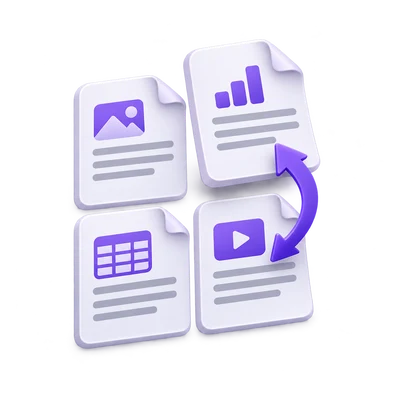
Move notices, schedules and evidence into a deliberate sequence.
Combine selected material and correct sideways pages.
Keep related scanned pages together before recognizing them.
Use the page board and source markers to understand the packet.
Add the source PDFs and inspect their pages together. Source outlines and badges help distinguish pages that came from different files.
The input budget applies to the loaded sources, not just the visible result. Deleting a page from the board does not free its original file from the session’s loading budget.
Reorder one page or a selected group.
Drag pages into place or use the move controls for a precise position. Keyboard and touch interactions support the same underlying page order.
Check the first page after a move and the transition between sections. Printed page numbers are not rewritten to match the new board positions.
Apply editing actions to the current selection.
Select pages before rotating, copying or deleting them. A duplicated page is a separate board item, so its later position and rotation can differ from the original instance.
Selection does not choose the export subset. Every page left on the board goes into the result, including pages that are not selected when you click Start.
Keep text and drawings without assembling screenshots.
The assembly copies native page content and keeps source images at their existing detail. The process is local to the browser.
Existing form appearances are flattened, and source bookmarks, attachments and interactive actions are not carried into the new document. Keep the originals when those features matter.
Add up to 25 PDFs, with 300 MB combined and 750 loaded source pages. Removed or undone source material still counts until you start a new session. The generated sequence remains subject to available memory and processing limits.
Document processing takes place in your browser without uploading the PDF for this operation. Save the result and keep the original separately. Choosing a server-based next tool starts a separate processing step.
Know what to expect before you start.
On your deviceNo. All pages left on the board are exported. Selection determines which pages an editing action changes.
Yes. Add the source files and arrange their pages together. Loaded-file, combined-byte and source-page limits apply to the workspace.
The workspace provides undo and redo for recent editing states. Review the board before exporting and keep the original source files.
Existing form appearances are flattened. Source bookmarks, attachments and interactive actions are not preserved in the newly assembled PDF.