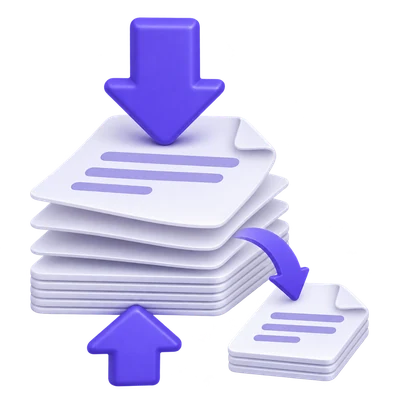
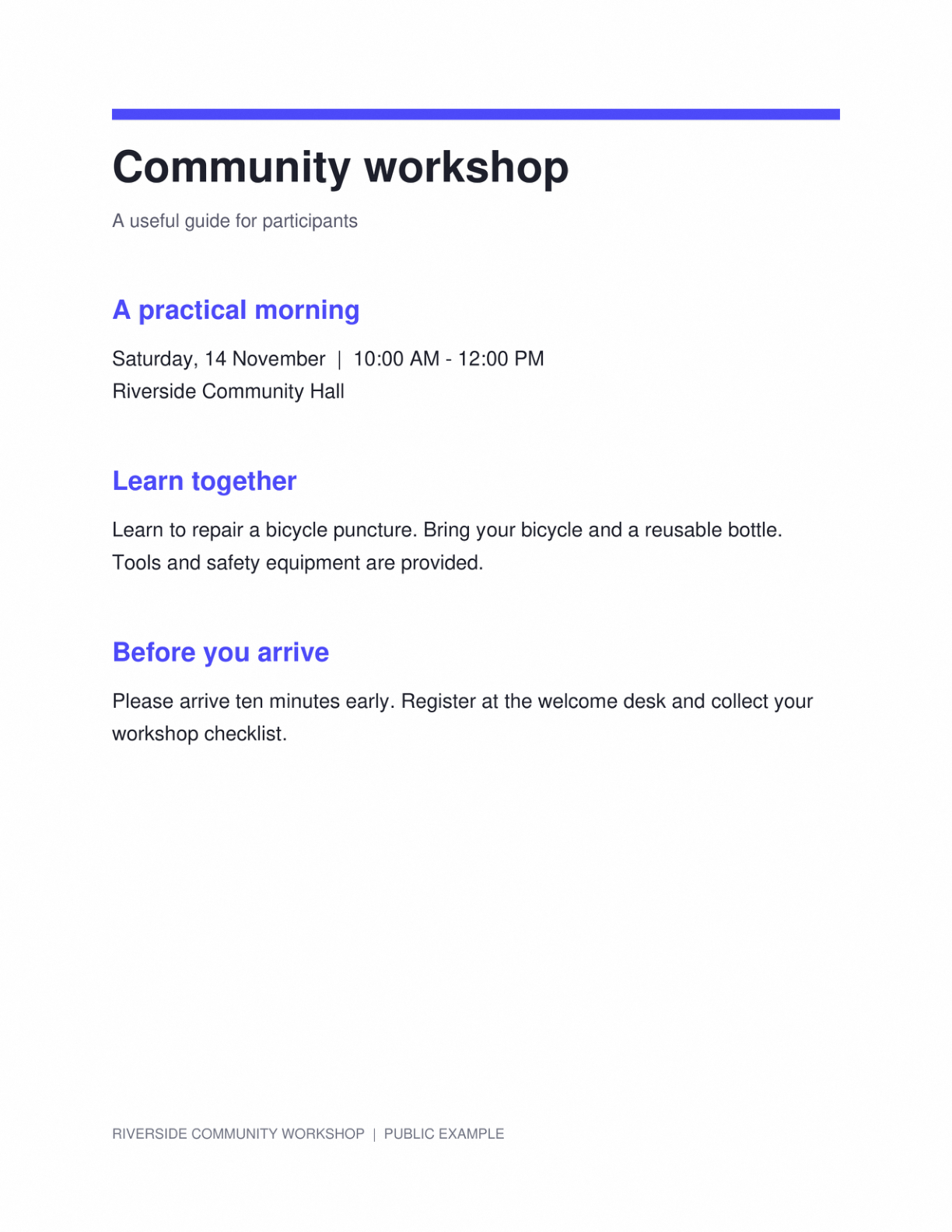
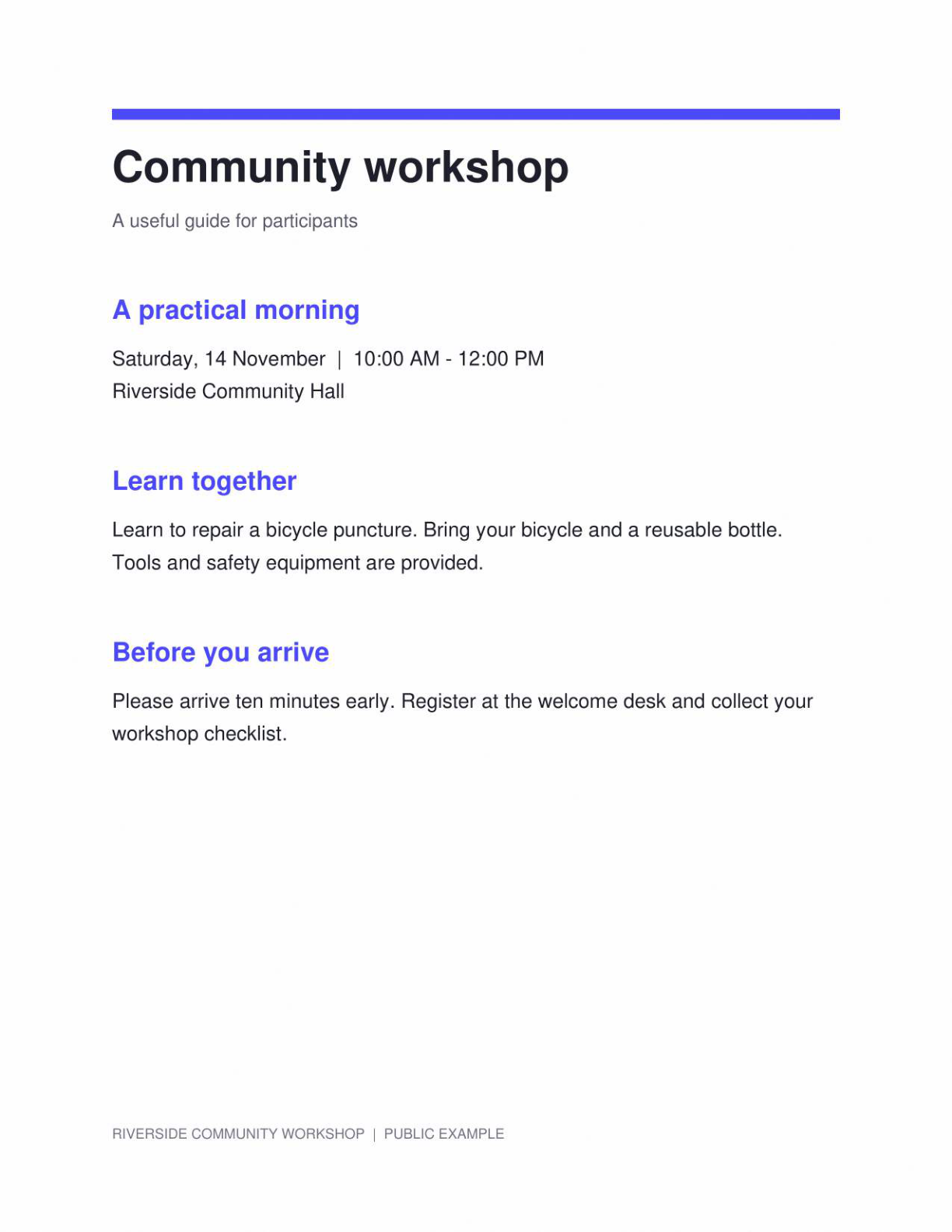

A smaller scan is useful only if its letters remain readable. Compression changes the stored representation and can remove fine image detail, so the right workflow measures both size and readability. Start with a conservative setting and judge the output against the task you actually need to complete.
The example uses a scan-heavy public workshop PDF. Compare the actual input and output byte counts alongside the document views; unchanged appearance alone does not establish how much space was saved.
Choose the file and identify the real constraint
Open Compress PDF and load the document. Note whether the next step is email, an upload limit or OCR. Keep the original so you can compare the result.
If only a few pages are needed, extracting those pages can be a better first step than heavily compressing a large packet. Removing unneeded pages avoids reducing detail on the pages you keep.
Choose quality, resolution and color
Start with Balanced, then choose an image resolution suited to the next task. For OCR preparation, inspect small text rather than judging only the full-page view.
Keep color when highlighted labels or handwriting matter. Choose grayscale deliberately; a color change is separate from a promise of byte savings.
Compare actual bytes rather than expecting a fixed percentage reduction.
Process and compare measured size
Leave the optional page range blank for the whole document, or specify only the pages you intend to export. Click Compress PDF to create the candidate result.
Read the reported original and result sizes. An unchanged result can be correct when further color-mode recompression would make the file larger.
Try removing unneeded pages before lowering the resolution of an entire packet.
Inspect the smallest text before downloading for use
Download the PDF and inspect a small reference number, a decimal point and any fine handwriting at a readable zoom. Check that the chosen pages are all present.
Use a less aggressive setting if the result loses useful strokes. When OCR is the next step, preserve the original for checking any uncertain recognized word.
Open Extract Pages From PDF · Open Remove Blank Pages From PDF
Common questions
Will compression always reduce the file size?
No. Some PDFs are already compact. In color mode, the tool can keep the original candidate when recompression would be larger.
Should I compress before OCR?
Only when needed for your workflow or an input limit. Compression can remove image detail, so use the original when practical and inspect small text if you compress.
Can I compress only certain pages?
Use the optional page range to export a selected-page candidate. Confirm that the resulting PDF contains the pages you intend to keep.
Why can grayscale produce a larger file?
Color conversion changes the document representation and is retained when requested. That change does not guarantee fewer bytes.
Prepare your next document with Compress PDF.
Compare actual bytes rather than expecting a fixed percentage reduction.