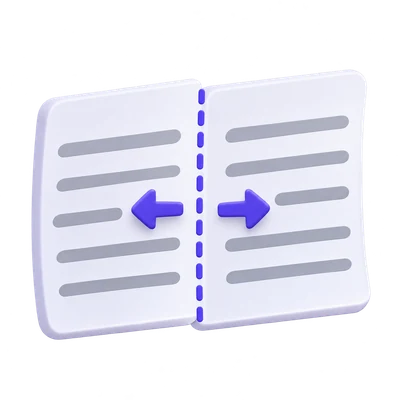
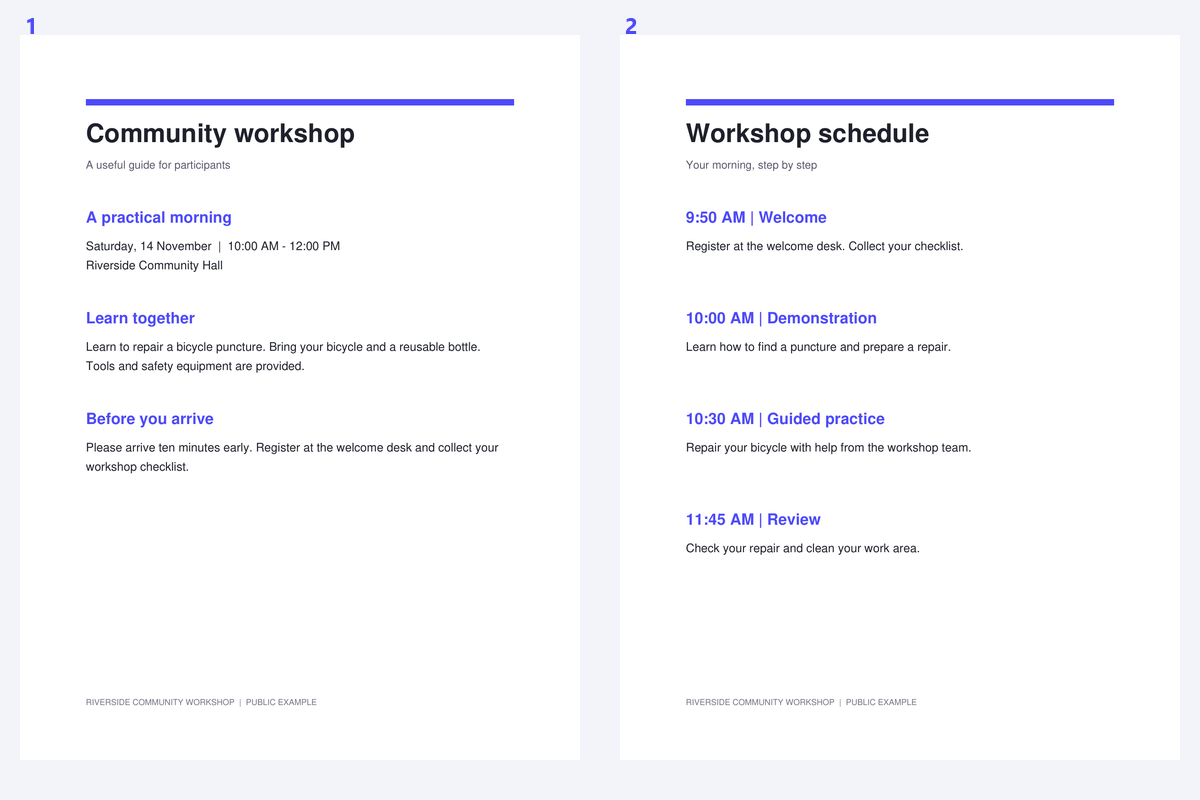

When two pages share one scan, OCR can confuse the gutter with a column break or combine unrelated lines. Separating the spread first gives you two clearer page areas to inspect. The important choices are the divider position and reading order; a mathematically equal split is not always the right one.
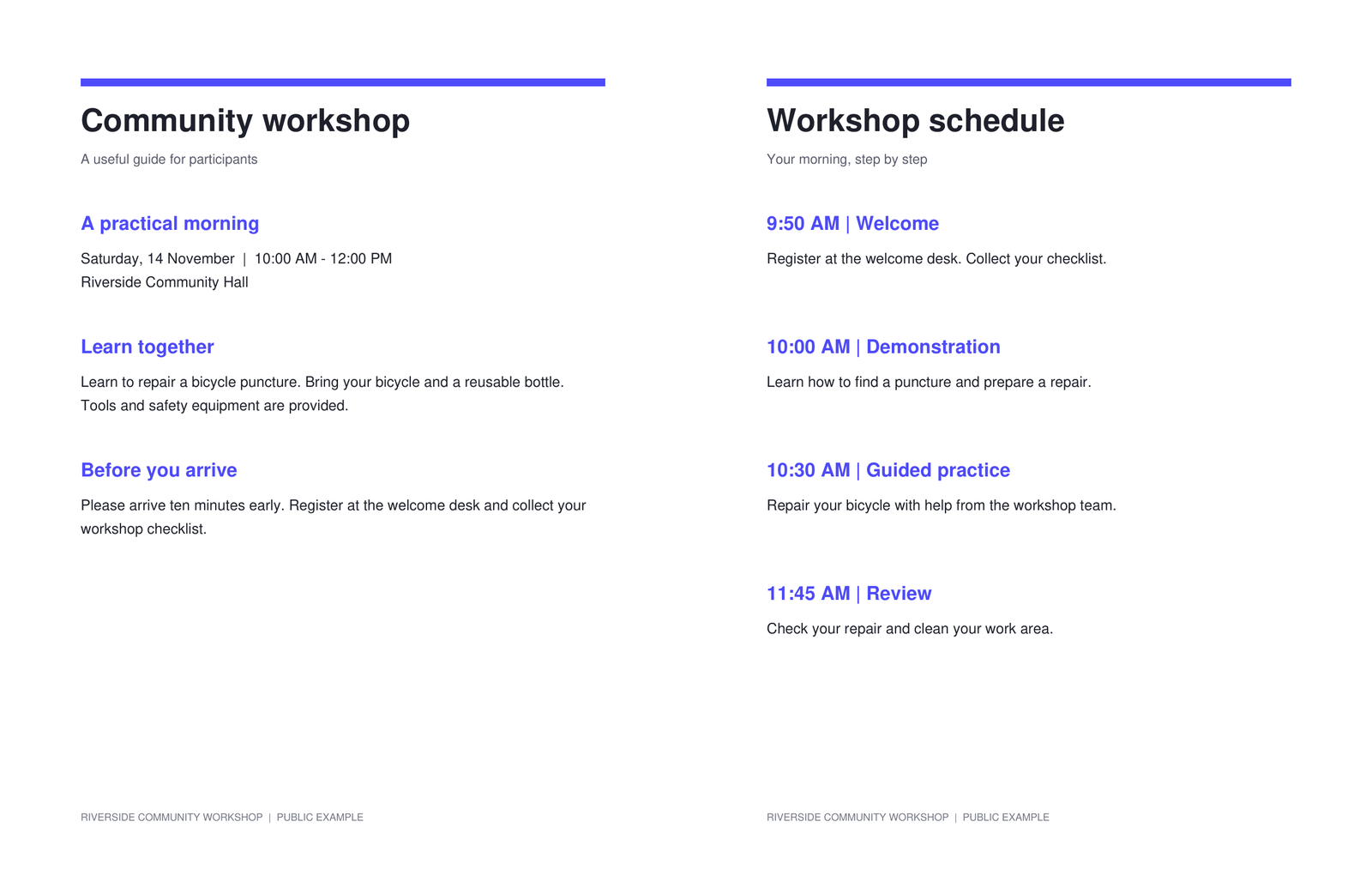
The example uses a public workshop spread with two side-by-side pages. Compare the source with the separate output pages, paying attention to the gutter and reading order.
Open a PDF containing paired pages
Open Split PDF Pages in Half and load the scanned document. Inspect whether the pages are beside one another or stacked vertically.
Check for covers and single-page scans mixed into the file. This tool produces two halves for every source page, so a mixed document may need extraction or page organization before splitting.
Align the divider with the gutter
Choose a vertical or horizontal split. Start at 50%, then drag the divider to the actual gap between the pages. Watch the text closest to the gutter so that the split does not cross a letter.
Use a shared position for consistent scans, or adjust pages separately when the gutter moves. A deeply curved book page may still need a better capture; a straight divider cannot flatten curved lines.
Check the gutter on several spreads before sharing one divider position.
Choose order and create the split PDF
Set left first, right first, top first or bottom first as appropriate. For a right-to-left book, inspect the actual page sequence instead of relying on the interface direction.
Choose a quarter-turn rotation only when needed. Click Split PDF, then inspect that each spread became two correctly oriented pages in the intended order.
Remove unwanted covers or single-page scans first when they should not be split.
Download and prepare the separate pages
Download the PDF and compare the page count and reading sequence with the source. Remove unintended blank halves with a page-removal tool if necessary.
Continue with PDF OCR for page-by-page recognition. Splitting the spread can make the recognition area easier to define, but it does not guarantee that a damaged gutter will be read correctly.
Common questions
Can the split be away from the center?
Yes. Move the divider or enter a position between 2% and 98%. Use separate page settings when the gutter changes through the document.
Can I split a right-to-left book?
Yes. Choose the half that should appear first, then inspect the resulting page order. Reading order is a separate choice from the website language.
Will every page become two pages?
Yes. Each source page contributes two halves. Use Extract Pages or Organize PDF first when only part of a mixed document needs splitting.
Does splitting reduce scan resolution?
The split copies original page content and changes page boxes. It does not resample the scan, add OCR or rebuild the text.
Prepare your next document with Split PDF Pages in Half.
Check the gutter on several spreads before sharing one divider position.