
A thick scanner border can take up much of a page without adding useful information. Cropping is a controlled way to narrow the visible area before recognition, provided you keep every mark that belongs to the document. This walkthrough explains when a manual crop, a page-by-page fit or a common frame is the better choice.
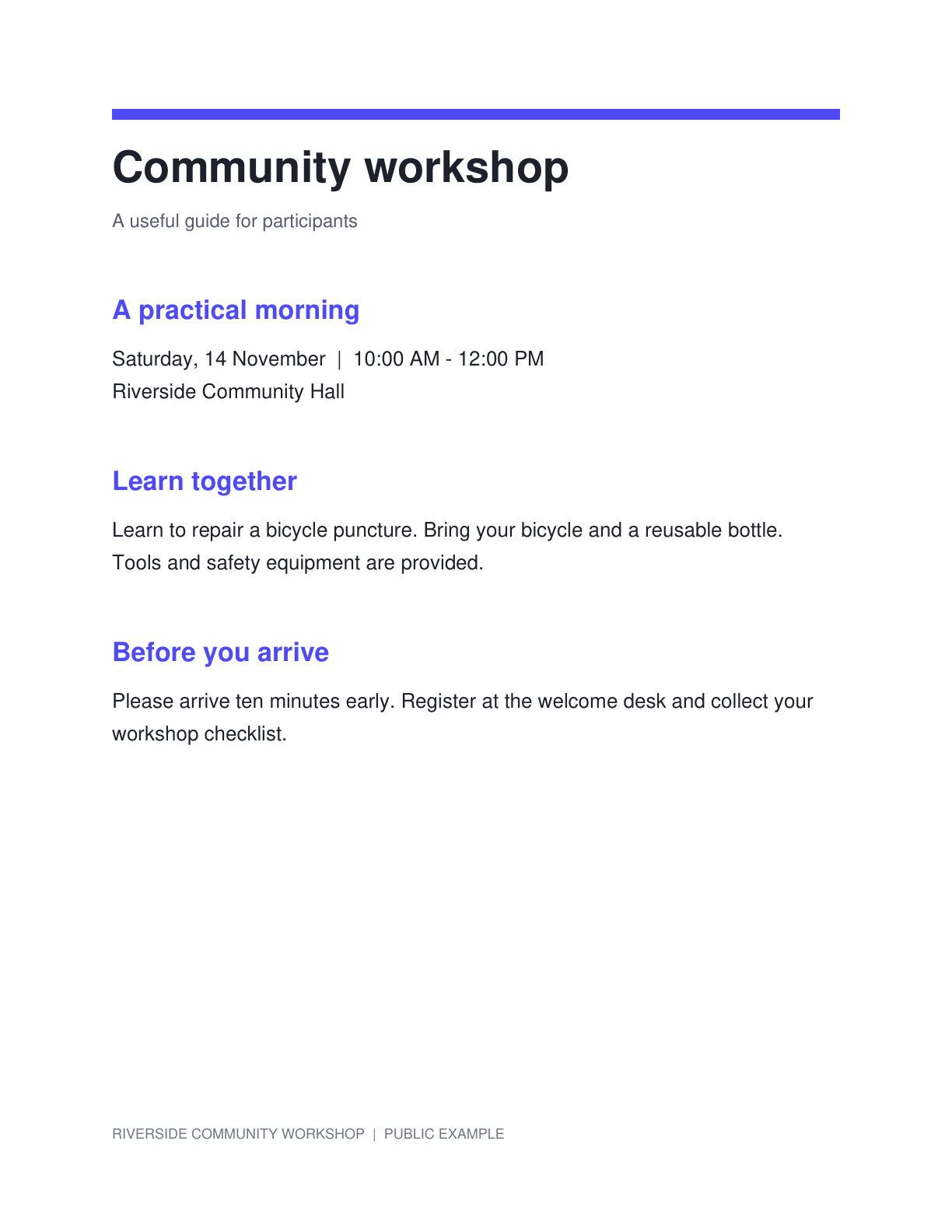
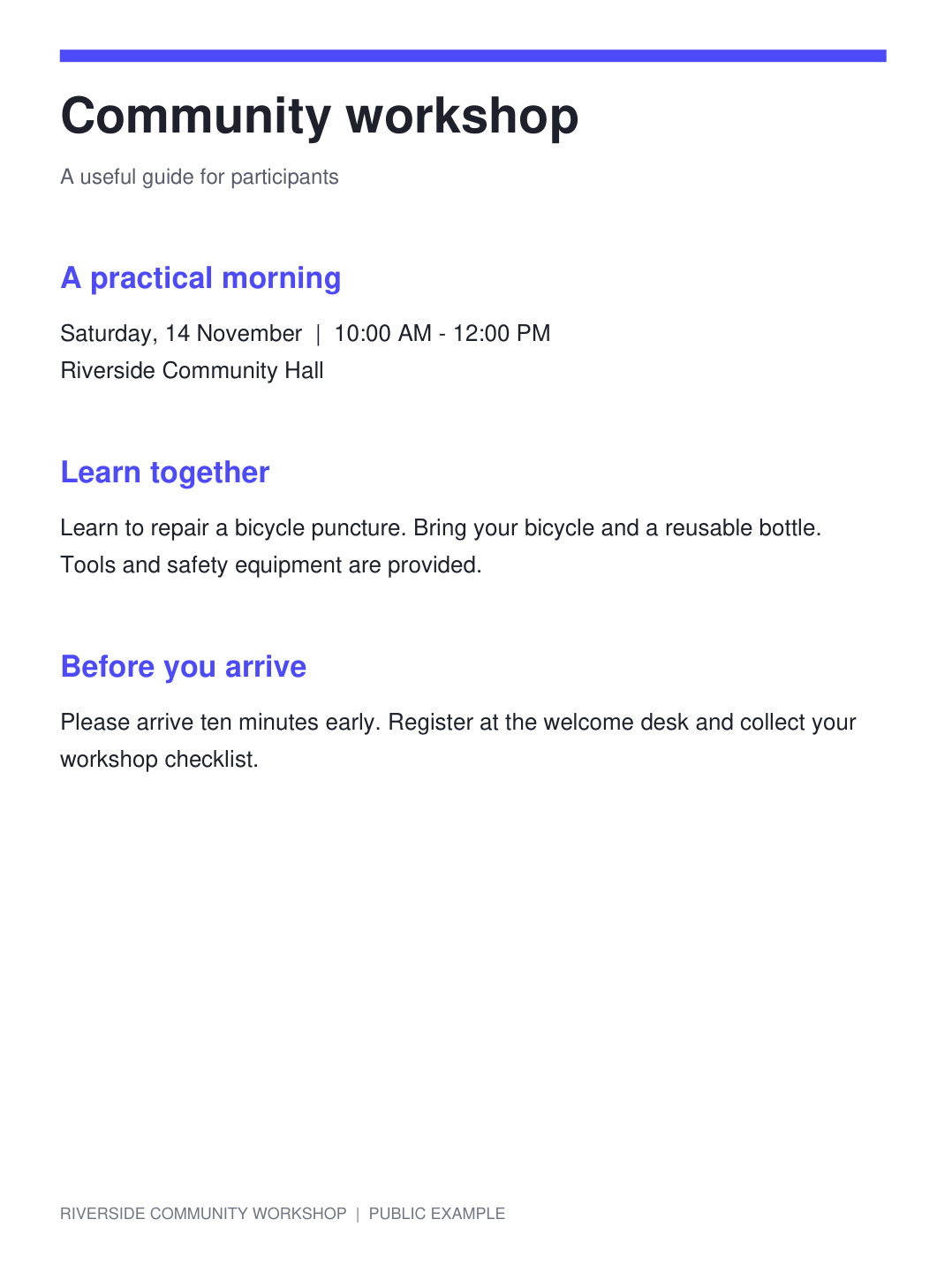
The example uses a public community-workshop notice with space around the useful content. Compare the original page frame with the cropped result and check that the heading and instructions remain complete.
Open the PDF and inspect its margins
Open Crop PDF and select your file, or try the sample. Browse more than the first page: a cover, a landscape table and a scanned appendix may need different boundaries.
For an OCR preparation pass, decide what belongs in the text you will recognize. A scanner border is usually expendable; a handwritten reference beside the printed paragraph may be essential.
Choose a crop method
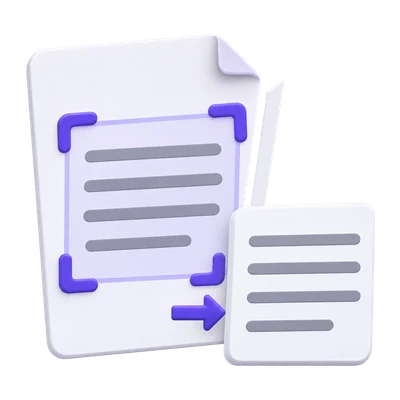
Keep Manual crop when you want precise control. Drag the selection around the content, and use the page preview to check both ends of each line. Use Auto · Fit each page when the margins vary.
For a uniform packet, choose Auto · Same size and inspect the combined overlay. Adjust automatic padding conservatively. Do not treat an automatically found border as proof that every faint mark is inside it.
Inspect the faintest marks, not only the boldest paragraph.
Review every changed page and create the result
Check the first and last lines, page numbers, stamps and any writing near the edges. If you share a relative crop, inspect a page with different dimensions before continuing.
Click Start to create the cropped PDF. The original drawing content is retained behind new visible page bounds, so this operation cannot safely conceal confidential information.
Try splitting a two-page spread before cropping individual page margins.
Download, inspect and continue to OCR
Download the result and confirm that the useful text is still complete. Keep the original separately so you can return to material outside the crop later.
If the PDF consists of scans, continue with PDF OCR and choose the document language. If the text is already selectable, PDF to Text may be sufficient without another recognition pass.
Common questions
Does cropping improve OCR accuracy?
A focused page can remove distracting borders, but cropping cannot recover blurred letters or guarantee better recognition. Keep complete lines and review the recognized text.
Will cropped text be permanently deleted?
No. Cropping controls the visible page area. Hidden source content can remain in the PDF, so do not use this tool to remove confidential information.
Can each page have a different crop?
Yes. Use separate manual selections or Auto · Fit each page. Choose Auto · Same size when consistent physical page dimensions matter instead.
Does the tool make a scanned PDF searchable?
No. Cropping prepares the visible page area. Run PDF OCR afterward if the source has no usable text layer.
Prepare your next document with Crop PDF.
Inspect the faintest marks, not only the boldest paragraph.