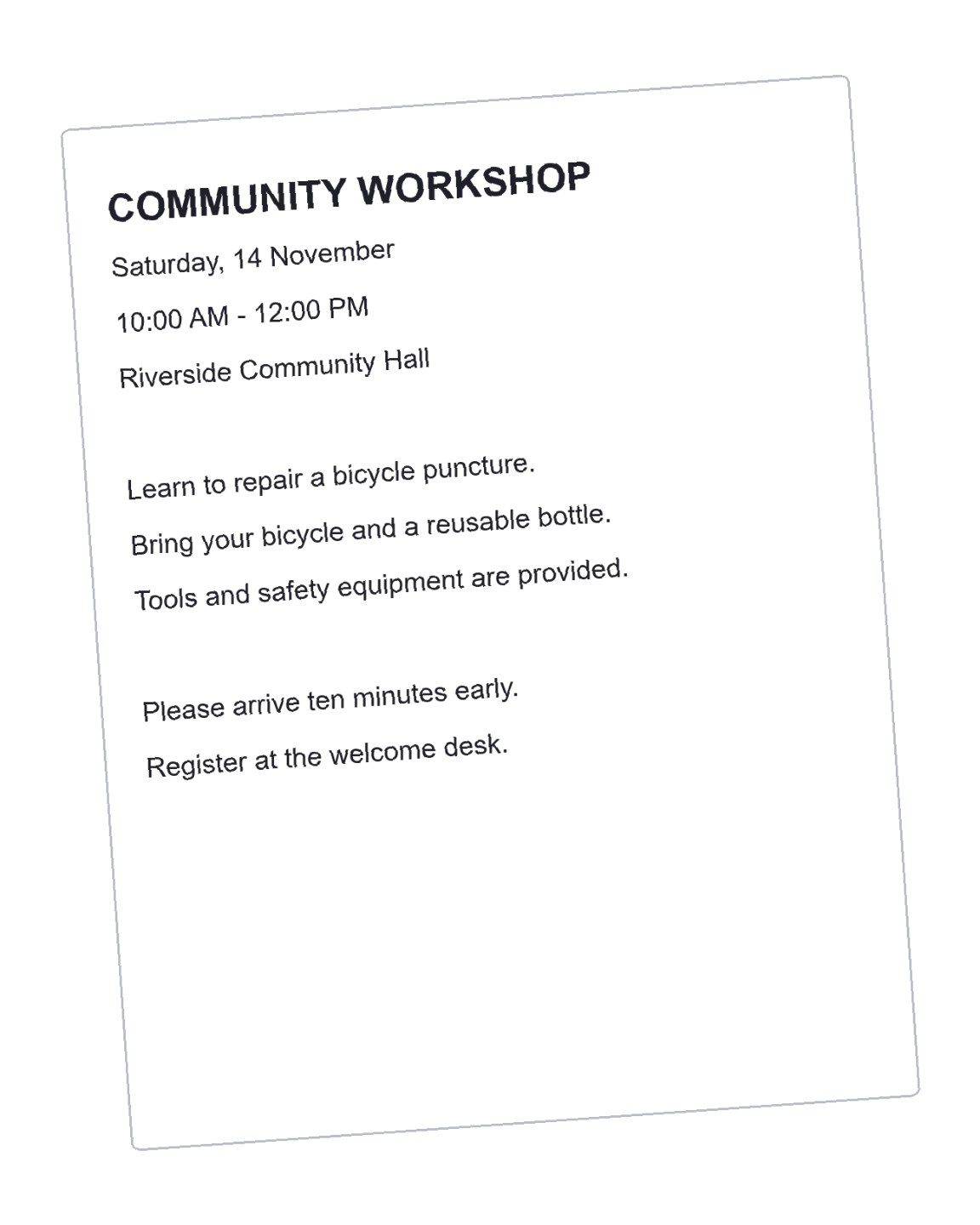
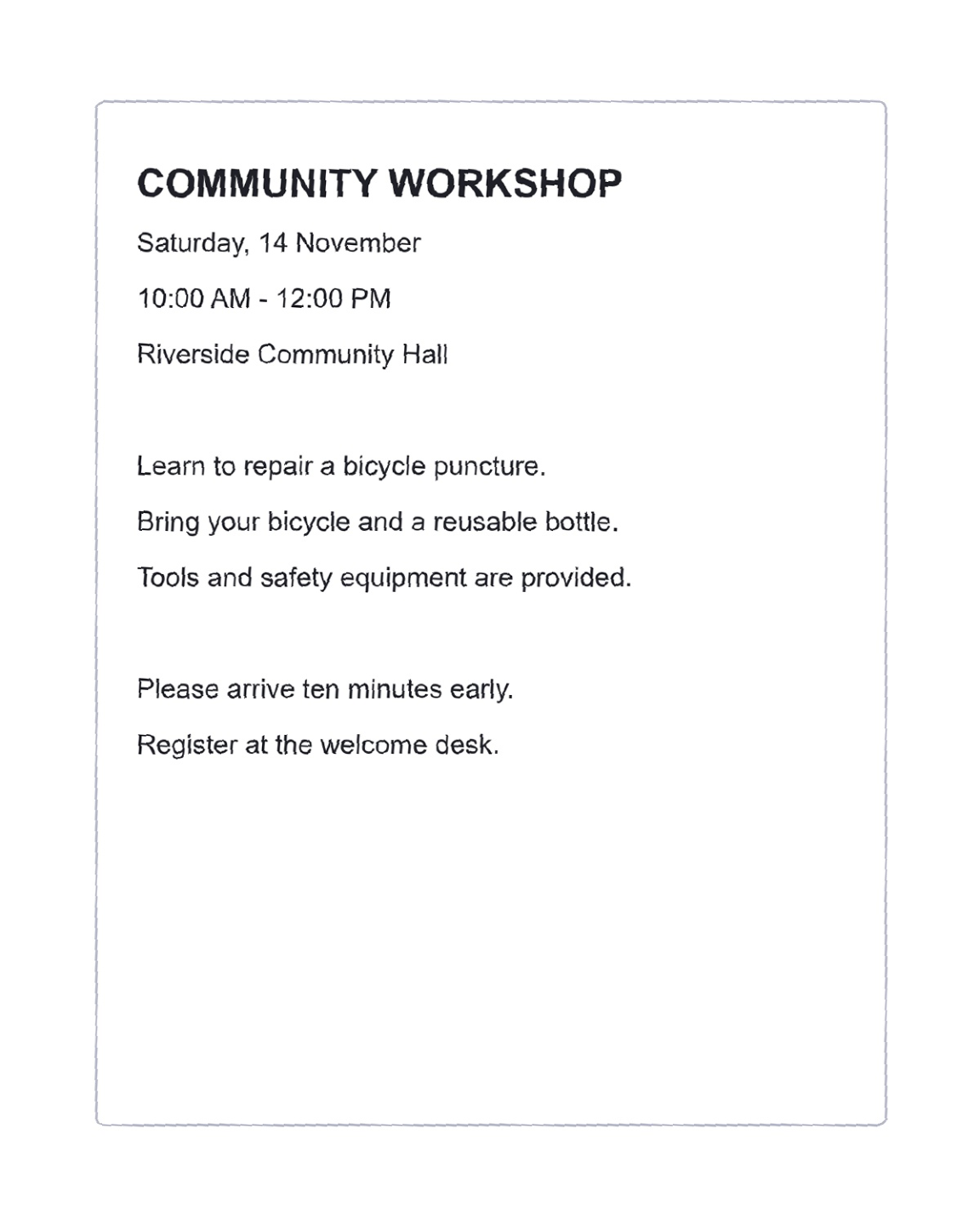

A small tilt is easy to overlook until the page is recognized or printed. Deskew PDF lets you align the scan against a grid or try an automatic correction. The useful result is not just straight text: it must also retain the information at the page edges and enough image detail for the next step.
The example uses a tilted public workshop scan. Compare the title and body lines before and after correction, then inspect the edges rather than judging alignment alone.
Decide whether the page is tilted or sideways
Open Deskew PDF and inspect the source. Slightly sloping text calls for deskew; a page turned 90° usually belongs in Rotate PDF instead.
Keep the original, particularly when it already has selectable text. Deskew produces a new image-based document, so its benefit should justify replacing that existing text layer.
Align the lines and choose the scope
In Manual mode, move the angle slider until a long text line follows the grid. Use the number field or fine nudge buttons for small changes.
Leave Apply to all pages enabled only when the tilt is consistent. Otherwise adjust each page separately. Pay particular attention to dates, page numbers and signatures close to the edge.
Use a long baseline rather than a short word to judge the angle.
Select resolution and process the PDF
Choose 150, 200 or 300 DPI. The default 200 DPI is a practical starting point; inspect small print before choosing a lower resolution.
You can also try Automatic mode and review its computed result. Click Start to process the source. Manual rotation keeps the original page frame, which means the corners can be clipped rather than expanded.
Avoid raster deskew for a simple sideways digital PDF; use Rotate PDF.
Inspect the output before recognition
Download the corrected PDF and check both line alignment and the outer edges. A straight paragraph is not a successful correction if a name or reference number has disappeared.
Continue with PDF OCR when the scan is ready. Review the recognized words against the corrected page, and return to the original if the angle or raster conversion has lost useful detail.
Common questions
Is deskew the same as rotating a PDF?
Deskew corrects tilt and rebuilds pages as images. Rotate PDF makes 90°,180° or 270° orientation changes while retaining native page content.
Can I use a different angle on each page?
Yes. Turn off Apply to all pages and adjust the pages individually. Keep it on only when one correction is suitable throughout.
Will the result remain searchable?
Deskew does not preserve an existing text layer in its image-based output. Run PDF OCR afterward when you need recognized text.
Why can page corners be cut off?
Manual deskew keeps the original page size while rotating the image inside it. Check content near the edges before saving the corrected result.
Prepare your next document with Deskew PDF.
Use a long baseline rather than a short word to judge the angle.