

Book scanning
Separate facing pages
Create an orderly sequence from two-page scans before recognition.


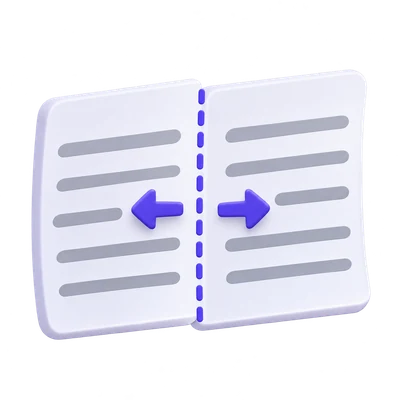
Turn a scanned spread into separate PDF pages. Move the divider to match the gutter, choose which half comes first and keep the original page content for the next OCR step.
Drag the divider or enter a percentage. Arrow keys move the divider.
Your PDF parts are ready together in a ZIP file. Go back to adjust the breaks if needed.
Open Split PDF Pages in Half and load the scanned document. Inspect whether the pages are beside one another or stacked vertically.
Choose a vertical or horizontal split. Start at 50%, then drag the divider to the actual gap between the pages. Watch the text closest to the gutter so that the split does not cross a letter.
Choose Split PDF, download the result and compare it with the original. Check the gutter on several spreads before sharing one divider position.
Turn a scanned spread into separate PDF pages. Move the divider to match the gutter, choose which half comes first and keep the original page content for the next OCR step.
Create an orderly sequence from two-page scans before recognition.
Separate top-and-bottom scans into their own pages.
Choose the first half to match the original reading direction.
A book spread is not always divided exactly in the middle.
Start with the 50% divider, then move it until the two page areas are separated. The numeric position and slider allow a split between 2% and 98% of the displayed page.
Review spreads near the beginning and end of a book. A shifting gutter may require a different divider on individual pages rather than one position throughout.
Separate left and right pages, or divide a stacked scan into top and bottom.
Vertical division suits side-by-side book pages. Horizontal division suits two pages stacked on a single scan. The divider follows the displayed page orientation.
This is a two-part split, not a general grid cutter. Each source page contributes both halves to one output PDF.
Put the intended first half before the second.
Choose left first or right first for a vertical split. For a horizontal split, choose top first or bottom first. Use the order that matches the source document, independently of the website language.
The source page order stays intact: the two halves of the first spread come before the halves of the next spread. Review the output when the source includes covers or intentionally blank halves.
The tool copies page content into smaller visible page frames.
Splitting does not sharpen, downsample or recognize the page. Existing selectable text can remain selectable, and a scanned image keeps its source pixels.
Use the optional quarter-turn rotation when the output halves need it. For small scan tilt, follow with Deskew PDF; for unequal outer borders, use Crop PDF.
Open one PDF up to 300 MB and 750 source pages. The full source must meet these limits even when you export a subset. Large or complex files can reach browser-memory or processing limits earlier.
Document processing takes place in your browser without uploading the PDF for this operation. Save the result and keep the original separately. Choosing a server-based next tool starts a separate processing step.
A few answers before you get started.
On your deviceYes. Move the divider or enter a position between 2% and 98%. Use separate page settings when the gutter changes through the document.
Yes. Choose the half that should appear first, then inspect the resulting page order. Reading order is a separate choice from the website language.
Yes. Each source page contributes two halves. Use Extract Pages or Organize PDF first when only part of a mixed document needs splitting.
The split copies original page content and changes page boxes. It does not resample the scan, add OCR or rebuild the text.