
Office
Combine photographed pages
Create one ordered PDF from related images.


Arrange images into a PDF with control over page order and layout. Choose paper size, margins and fit, rotate individual images and review the whole board before saving.
Drag to reorder. Click an image to select it.
Add more images, or undo to bring them back.
Use the page controls to inspect your document.
Save your result or return to adjust the settings.
Choose one or more files. Each image or frame gets its own thumbnail.
Arrange, rotate or remove images, then choose paper, margins and image fit.
Select Start, then download your PDF. You can return to make more changes.
Arrange images into a PDF with control over page order and layout. Choose paper size, margins and fit, rotate individual images and review the whole board before saving.
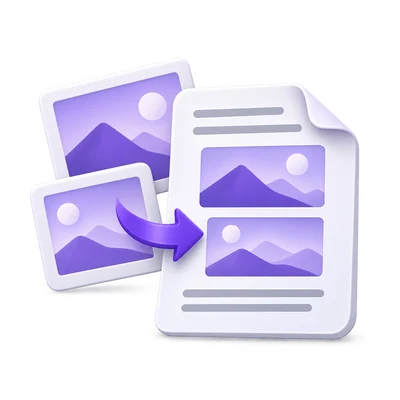
Create one ordered PDF from related images.
Keep useful frames and remove accidental repeats.
Choose consistent paper and margins without losing text at the image edges.
Add supported photos, scans and multipage image sources.
JPEG, PNG, TIFF, GIF, WebP, BMP and SVG are accepted by this route. Supported animated or multipage sources can contribute more than one frame or page.
Inspect the prepared board rather than assuming every file contributes exactly one page. File, combined-byte and decoded-source-page limits all apply.
Build the sequence using the actual page thumbnails.
Reorder pages, correct orientation and remove material that does not belong. Duplicate an image only when it should appear more than once.
Selection controls editing actions. All pages left on the board are exported, so clear out unwanted frames instead of merely leaving them unselected.
Keep all image content or fill the chosen paper area.
Contain fits the whole image into the available page area. Cover fills that area and can crop image edges when the proportions differ.
Choose paper, orientation, margins and page background while inspecting a real page preview. For text recognition, keep complete lines and marginal notes visible.
Preparation depends on the image format and browser capabilities.
Supported ordinary JPEG, still PNG and still WebP sources can be prepared locally. Other formats and unsupported decoding paths use server preparation.
Layout and final PDF assembly then take place in the browser using the prepared content. Use Image OCR directly when you only need the words from one original image.
Add up to 50 image files, at most 50 MB each and 200 MB combined, with up to 200 decoded source pages or frames. Removed source material still counts within the session; decoding, prepared-data and memory limits also apply.
Supported ordinary JPEG, still PNG and still WebP images can be prepared in your browser. Other formats or unsupported decoding paths use server preparation. Page arrangement and final PDF assembly then run in the browser.
Know what to expect before you start.
Server + your deviceYes. Supported multipage or animated sources can expose multiple frames. Inspect the prepared board and remove frames you do not want.
No. All images left on the board are exported. Selection controls editing operations such as rotation, duplication and removal.
Contain keeps the full image visible inside the page area. Cover fills the area and can crop edges when the image and page proportions differ.
No. Supported ordinary JPEG, still PNG and still WebP files can be prepared locally. Other formats or unsupported decoding paths use server preparation; final layout and assembly run in the browser.