
Review
Inspect individual pages
Create page images for a visual checking workflow.


Turn complete PDF pages into image files for visual review or an image-based workflow. Choose the pages, format, resolution and rotation, then download a single result or a ZIP.
Use the page controls to inspect your document.
Download your result, or return to the settings to make another version.
Upload one PDF from your device.
Review the available settings, then start processing.
Save the result and check it before sharing.
Turn complete PDF pages into image files for visual review or an image-based workflow. Choose the pages, format, resolution and rotation, then download a single result or a ZIP.
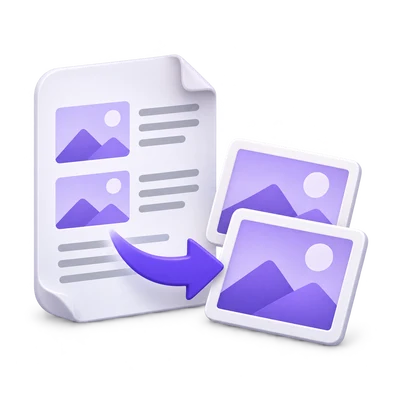
Create page images for a visual checking workflow.
Export a page when an image-only editor is needed.
Move a PDF page into Image OCR only when that route adds a useful step.
Choose the PDF pages that should become separate files.
This tool exports the page view, including text, drawings and visible images. It does not retrieve each original photograph stored inside the PDF.
Use a page range to focus on the material you need. The full source still has to meet the tool’s loading limits.
PNG and JPG cover many ordinary page-image workflows.
PNG is useful when clean text edges matter; JPG can be convenient for photographic content. TIFF, GIF, WebP, BMP and additional document or specialized formats are also available.
Use a format accepted by the next tool. For Image OCR, a common raster image is usually more appropriate than SVG, PostScript or a specialized container.
Render at 150, 200 or 300 DPI and apply a quarter-turn if needed.
The selected DPI controls the raster output dimensions. Higher resolution can represent fine PDF text and vector detail, but cannot recover lost detail in a low-resolution scan.
Inspect small letters and punctuation in the actual downloaded image. The default 200 DPI is a starting point, not a guarantee that every source will be legible.
The download follows the number of selected pages.
One selected page produces a single output file. Multiple selected pages are packaged in a ZIP with page-based filenames.
Extract the ZIP before opening one image in an image editor or Image OCR. If you simply need to recognize a PDF page, PDF OCR can avoid an unnecessary format conversion.
Open one PDF up to 50 MB and 750 source pages. The full source must meet these limits even when you export a subset. Large or complex files can reach browser-memory or processing limits earlier.
The PDF preview is displayed in your browser. Starting the operation sends the document and selected settings to the server for processing. File handling is described in the Privacy Policy.
Know what to expect before you start.
Temporary server processingNo. It exports complete page appearances. Text, drawings and images on a page are included in the rendered result.
Multiple selected pages are packaged as separate files in a ZIP. A single selected page produces one file directly.
No. It can render existing PDF detail at a larger pixel size, but cannot recover letters or details missing from the original scan.
Only when an image-based workflow is useful. PDF OCR can recognize PDF pages directly, avoiding an unnecessary intermediate conversion.