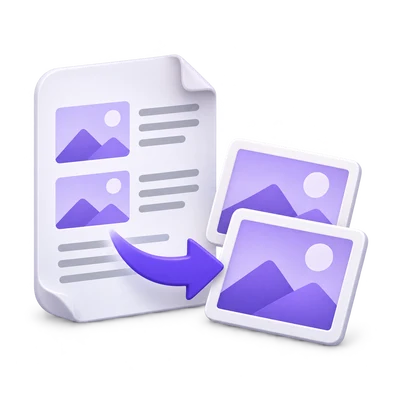

Sometimes the next tool needs an image rather than a PDF page. PDF to Images renders complete pages into separate files, with a choice of resolution and format. That is different from extracting original embedded photographs, and it should be a deliberate step rather than a requirement before every OCR task.
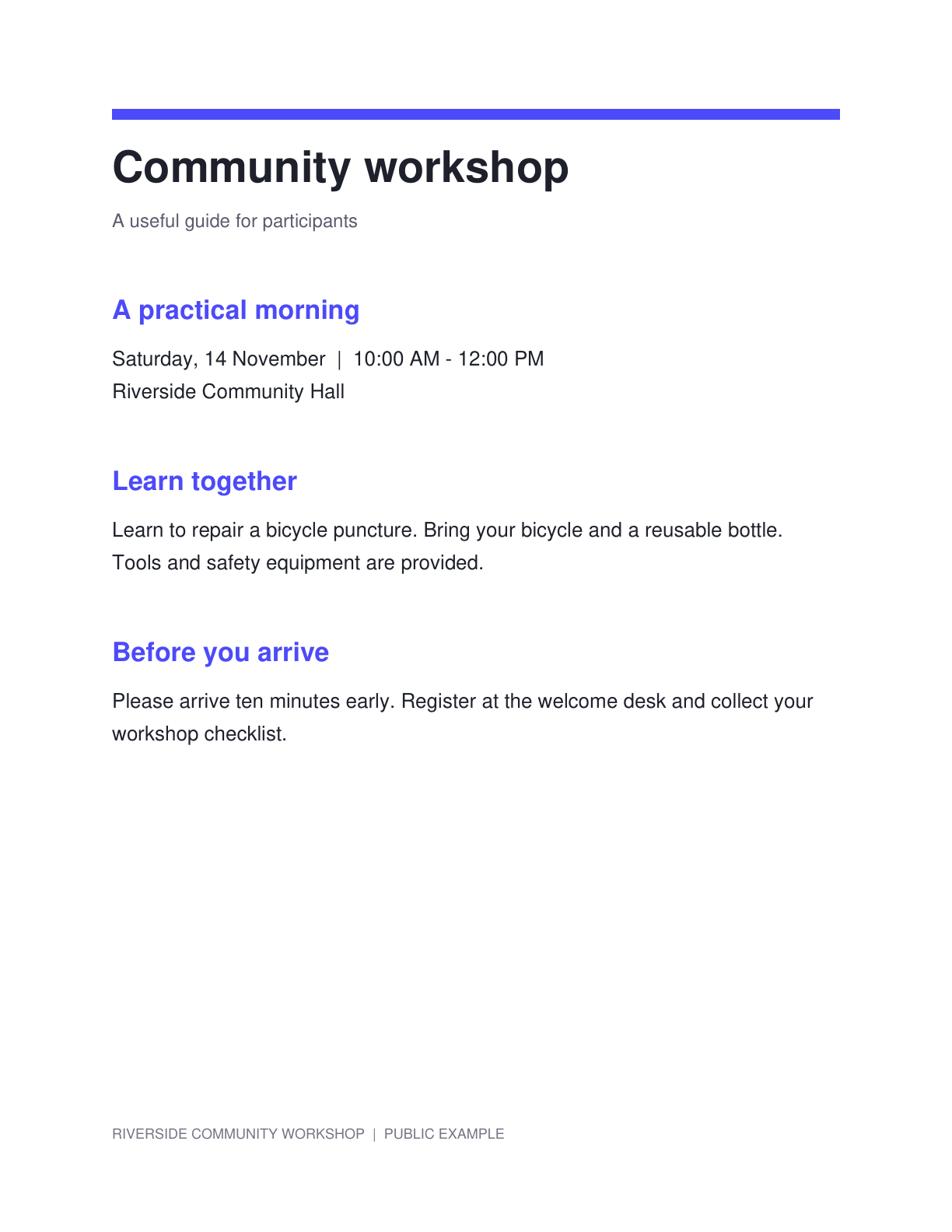
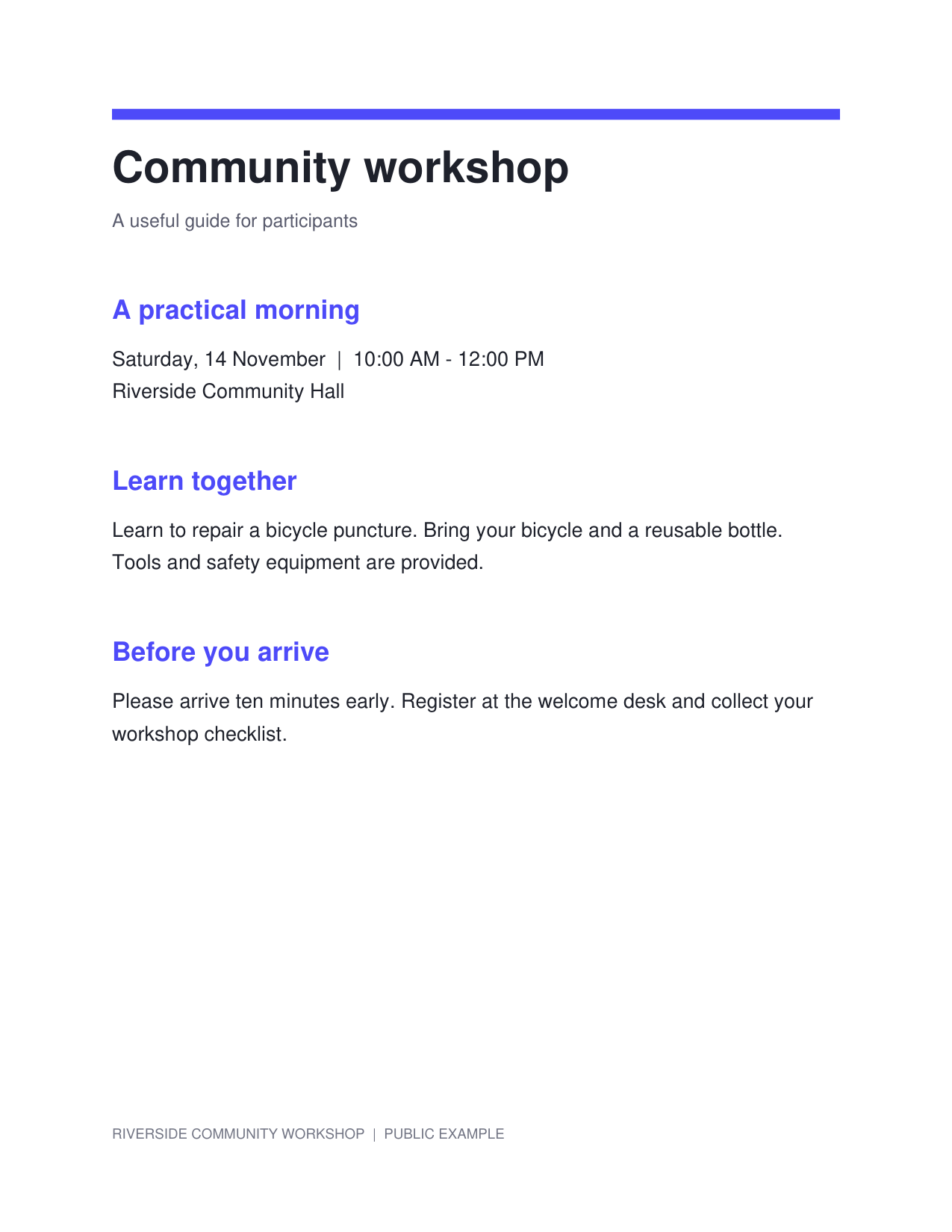
The example renders a public workshop notice as an image file. Compare the page view with the downloaded image and use its measured dimensions to understand the chosen resolution.
Choose the pages that need image files
Open PDF to Images and load the PDF. Enter the relevant page positions or keep the full document selection.
Ask whether a page image is actually needed. PDF OCR can recognize PDF pages directly; exporting images is useful when a separate image editor, review system or image-only workflow requires them.
Choose format, resolution and rotation
Select a format suitable for the next task. PNG is a practical choice for preserving rendered text edges, while JPG may suit a photographic page.
Choose 150, 200 or 300 DPI and a quarter-turn rotation if needed. A higher DPI can render native PDF detail more finely, but does not create missing scan information.
Check the downloaded image at a useful zoom, not only the preview.
Render and inspect the actual output
Click Start to export the selected pages. A single page produces one file; several pages produce a ZIP containing individual page files.
Open an output image and inspect the smallest text. A sharp-looking full-page thumbnail is not enough to judge whether small characters survived the rendering choice.
Choose a common raster format accepted by the next tool.
Download and use the page image deliberately
Download the result and extract an archive before choosing an individual image for the next step. Keep page-based filenames when source references matter.
Use an image preparation tool or Image OCR when appropriate. Keep the original PDF for checking layout and any native text or vectors that a raster image cannot preserve.
Common questions
Does this extract the original images embedded in the PDF?
No. It exports complete page appearances. Text, drawings and images on a page are included in the rendered result.
Why did I receive a ZIP file?
Multiple selected pages are packaged as separate files in a ZIP. A single selected page produces one file directly.
Will 300 DPI repair a blurry scan?
No. It can render existing PDF detail at a larger pixel size, but cannot recover letters or details missing from the original scan.
Should I convert a PDF to images before OCR?
Only when an image-based workflow is useful. PDF OCR can recognize PDF pages directly, avoiding an unnecessary intermediate conversion.
Prepare your next document with PDF to Images.
Check the downloaded image at a useful zoom, not only the preview.