
Documents
Isolate a notice or receipt
Remove the surrounding desk while keeping headings, dates and totals together.


Keep the useful part of a photo, screenshot or scan. Adjust the crop and save a separate image.
Review the preview before processing. Your original image stays unchanged.
Download the processed image, return to adjust it, or continue to Image OCR.
Upload one supported image up to 50 MB. Select a frame if the file contains several.
Move and resize the selection. Choose Free selection, Original ratio or a preset shape.
Choose PNG, JPEG or WebP, click Crop Image, then download the cropped image.
Crop Image removes the outer parts of a picture and saves the selected rectangle as a new image. Use it to isolate a receipt, trim a screenshot or remove the desk around a photographed page before OCR.
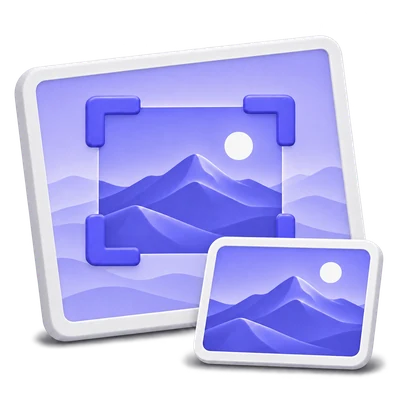
Remove the surrounding desk while keeping headings, dates and totals together.
Trim browser controls and unrelated content before sharing a screenshot.
Create a separate image of the passage you want to recognize.
Drag the selection and its handles to keep the required rectangle. The dimensions show the size of the exported area.
Leave enough room around the first and last characters of each line. Cropping too tightly can remove punctuation, accents or the edges of letters.
Use the arrow keys to move a focused selection, or Shift plus an arrow key to resize it. Select whole image restores the complete frame when you want to start again.
Use Free selection, Original ratio, 1:1, 4:3, 16:9 or A4 to control the crop's proportions.
A fixed ratio constrains the selection rectangle; it does not stretch the contents to fit. Original ratio keeps the source frame's proportions, while Free selection lets width and height change independently.
A4 here is a shape preset, not a request to create an A4 PDF or set a print size. The output remains a raster image of the selected area.
Download the new image or send it to another image tool for a follow-up task.
For a tilted scan, use Deskew Image before or after cropping and inspect the edges again. For a two-page spread, Split Image in Half may be more useful because it keeps both sides as separate files.
Choose Image OCR when you need editable words. The recognition step has its own upload limit and verification; cropping alone does not run OCR.
Open a still image or choose a frame from a supported animated or multipage source. Only that selected frame is exported.
PNG, JPG, JPEG, TIF, TIFF, BMP, GIF, WebP and HEIC are supported inputs. Open one file up to 50 MB. Files may contain up to 100 frames or pages; image dimensions and decoding limits also apply.
Frame navigation changes the image being edited. Saving a result does not preserve a whole animation, its timing or all pages of a multipage file. Choose each required frame separately.
PNG is the default. PNG and WebP can keep transparency; JPEG uses a white background for transparent pixels.
PNG and lossless WebP avoid lossy encoding. JPEG is saved at its highest quality setting, but it is still a lossy format; it is not a lossless copy of the source.
The output is a new image. The original file stays unchanged, but the export does not preserve all original metadata or every source-format feature. Use a separate source copy when those details matter.
Open one supported image up to 50 MB, with no more than 100 frames or pages. Pixel dimensions and decoding limits also apply. Each run exports only the selected frame as a still image.
Your image uploads to our servers to prepare its preview and process the selected frame. These tools do not run OCR. Download the result you need and keep the original separately; see the Privacy Policy for file handling details.
Formats, selected frames and output quality explained.
Server processingCropping keeps the selected pixels and removes the surrounding area. An aspect-ratio preset changes the selection shape without stretching the content. The crop dimensions determine the output dimensions.
Before starting, choose Select whole image or adjust the selection. The original file is unchanged, so you can reopen it later. A downloaded cropped copy contains only its selected area.
Yes. Keep complete lines and a small margin around the text, then continue to Image OCR. Cropping creates an image; recognition is a separate step.
Open one PNG, JPG, JPEG, TIF, TIFF, BMP, GIF, WebP or HEIC image up to 50 MB. Files may contain up to 100 frames or pages, with additional pixel and decoding limits. Only the selected frame is saved as a still image.
PNG is the default and uses lossless encoding. Lossless WebP also preserves image detail and transparency. JPEG is saved at its highest quality setting but remains lossy, with white replacing transparent areas. The export is a new image, not an unchanged copy of the original file and its metadata.
No OCR runs in this image tool. The file uploads for preview preparation and image processing, and the result is a separate image. You can continue to Image OCR when you need text; that tool has its own limits and verification.