Scanned books
Separate facing pages
Turn a photographed spread into left and right page images.


Turn one spread or picture into two useful images. Place the divider where the content separates.
Review the preview before processing. Your original image stays unchanged.
Download both images as a ZIP or save either image separately.
Download both images as a ZIP, or continue with either image in Image OCR or another image tool.
Upload one supported image up to 50 MB and select the required frame.
Select Side by side or Top and bottom. Move the divider and check the output order.
Choose the image format, click Split Image, then download the ZIP or either piece.
Split Image in Half divides the selected image frame along one straight line. Keep a centered 50% split for equal halves, or move the divider to separate uneven pages, panels or sections.
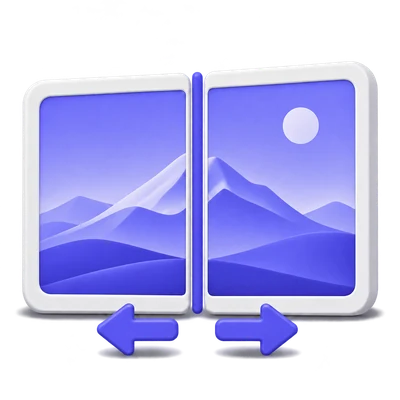
Turn a photographed spread into left and right page images.
Save the upper and lower sections of a tall screenshot independently.
Send either piece to Image OCR without carrying the other page with it.
Side by side divides the width; Top and bottom divides the height. Both produce two separate images.
Use Side by side for a two-page book spread or two adjacent panels. Use Top and bottom for a tall image with one section above another.
The split follows a straight line through the image. For an angled gutter, straighten the source first and review the divider again.
Start at 50% for equal halves, or move the divider from 10% to 90% to match the content.
Drag the line on the preview or adjust Split position. Place it in the blank gap between sections so neither output loses useful text.
The split uses whole pixels. An odd image dimension can make one half a pixel larger, and a 50% split is only useful when the content actually divides in the middle.
Download the pair as a ZIP, save either image separately, or choose one piece for another tool.
Reverse output order changes which piece is listed first; it does not flip or mirror the picture. This is useful when the desired reading order starts on the other side.
Each piece uses the chosen PNG, JPEG or WebP format. Continue with image 1 or image 2 when you want to crop, straighten or recognize that piece. Image OCR applies its own file-size limit.
Open a still image or choose a frame from a supported animated or multipage source. Only that selected frame is exported.
PNG, JPG, JPEG, TIF, TIFF, BMP, GIF, WebP and HEIC are supported inputs. Open one file up to 50 MB. Files may contain up to 100 frames or pages; image dimensions and decoding limits also apply.
Frame navigation changes the image being edited. Saving a result does not preserve a whole animation, its timing or all pages of a multipage file. Choose each required frame separately.
PNG is the default. PNG and WebP can keep transparency; JPEG uses a white background for transparent pixels.
PNG and lossless WebP avoid lossy encoding. JPEG is saved at its highest quality setting, but it is still a lossy format; it is not a lossless copy of the source.
The output is a new image. The original file stays unchanged, but the export does not preserve all original metadata or every source-format feature. Use a separate source copy when those details matter.
Open one supported image up to 50 MB, with no more than 100 frames or pages. Pixel dimensions and decoding limits also apply. Each run exports only the selected frame as a still image.
Your image uploads to our servers to prepare its preview and process the selected frame. These tools do not run OCR. Download the result you need and keep the original separately; see the Privacy Policy for file handling details.
Formats, selected frames and output quality explained.
Server processingYes. Leave Split position at 50%. You can also move it between 10% and 90% for unequal pieces. Whole-pixel rounding may make one half a pixel larger when the source dimension is odd.
No. It changes the order of the two resulting files. The picture content in each part is not mirrored.
Each run creates two pieces. Download them or continue with one piece and split it again if you need another division.
Open one PNG, JPG, JPEG, TIF, TIFF, BMP, GIF, WebP or HEIC image up to 50 MB. Files may contain up to 100 frames or pages, with additional pixel and decoding limits. Only the selected frame is saved as a still image.
PNG is the default and uses lossless encoding. Lossless WebP also preserves image detail and transparency. JPEG is saved at its highest quality setting but remains lossy, with white replacing transparent areas. The export is a new image, not an unchanged copy of the original file and its metadata.
No OCR runs in this image tool. The file uploads for preview preparation and image processing, and the result is a separate image. You can continue to Image OCR when you need text; that tool has its own limits and verification.