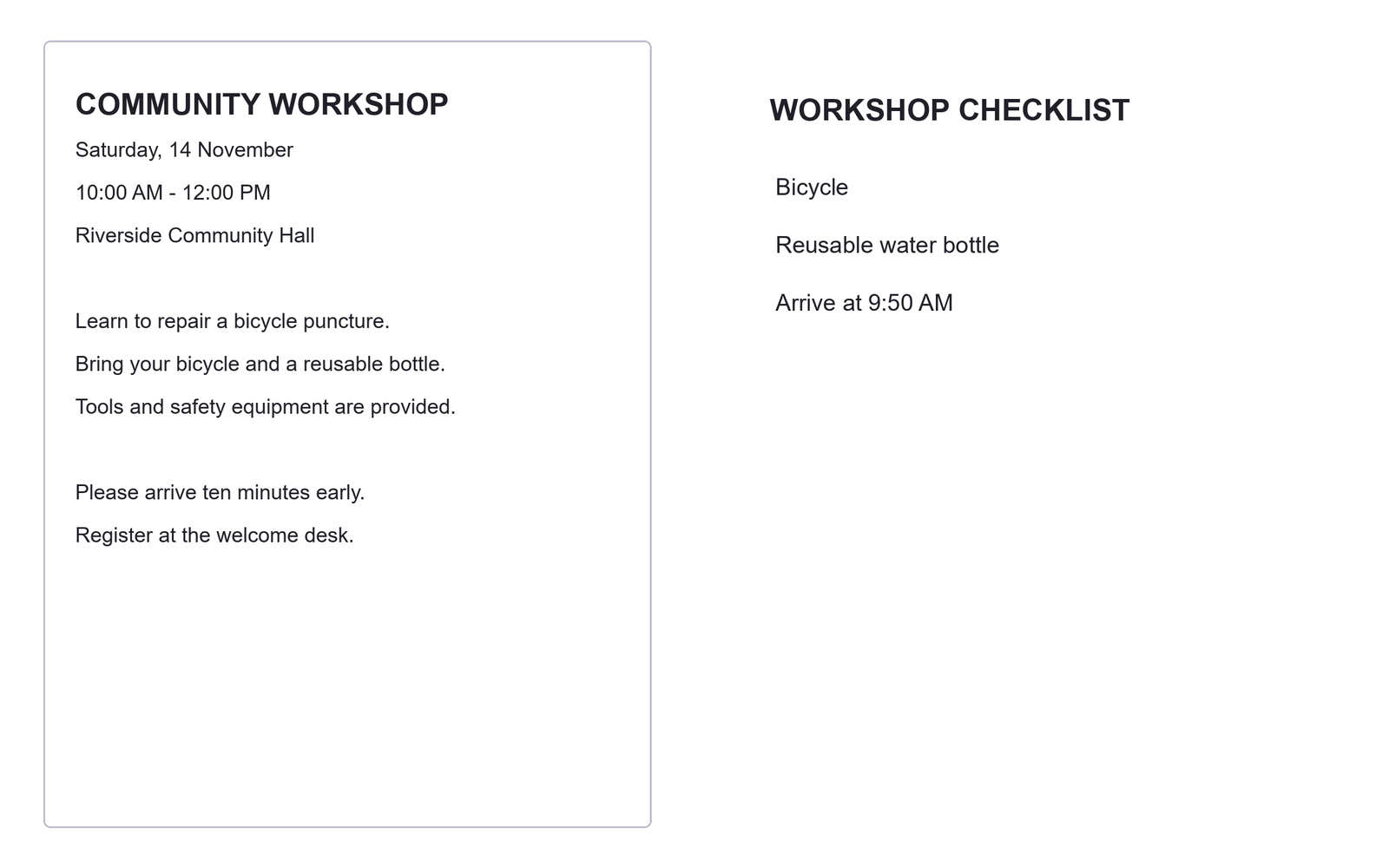
A two-page scan is convenient to capture, but separate images are often easier to read or recognize. This example uses a workshop notice beside a checklist. The goal is to keep both sections intact as individual files, with the divider placed in the gap between them.
Open the image that contains both sections
Open Split Image in Half and choose Upload Image. Use a supported PNG, JPG, JPEG, TIF, TIFF, BMP, GIF, WebP or HEIC file up to 50 MB. If it has multiple frames or pages, select the one you want to divide.
Check that both sections are complete in the original. The tool can separate existing pixels, but it cannot reconstruct a page edge that was missed in the photograph.
Choose the direction and position the divider
For the workshop spread, choose Side by side. This produces a left piece and a right piece. Choose Top and bottom instead when the two sections are stacked vertically.
The divider starts at 50%. Drag it on the preview or adjust Split position until it falls in the empty space between the sections. The control allows positions from 10% to 90%, so the pieces do not have to be equal.
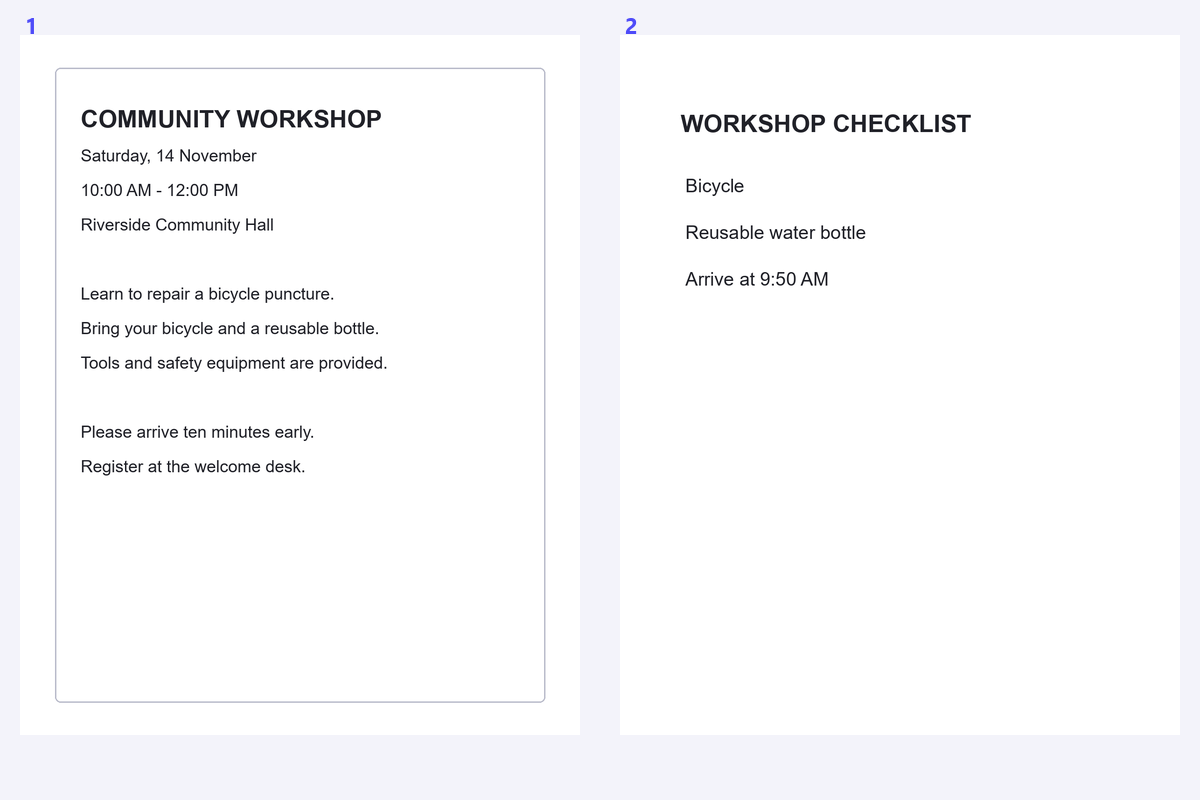
The example uses a 50% side-by-side split. Its 2,400 by 1,500 pixel source becomes two 1,200 by 1,500 pixel images.
A centered split is a starting point, not a page detector. Follow the real gap between the pages.
Check the edges and reading order
Inspect the text closest to the divider. Keep whole words, page numbers and any captions on their appropriate side. If the gutter is tilted, use Deskew Image first; a straight split cannot follow a diagonal boundary.
Select Reverse output order if you want the other side listed first. This changes the sequence of the files and result cards without mirroring their content. Leave it off when the ordinary left-to-right or top-to-bottom order is correct.
Split the image and save the results
Choose PNG, JPEG or lossless WebP, then click Split Image. PNG and WebP can retain transparency. JPEG uses a white background for transparent areas and remains a lossy format even at its highest quality setting.
Review both result images. Download saves the pair in a ZIP; the individual download buttons save one piece. You can also continue with either image in another tool, including Image OCR. Recognition is a separate operation, so review its text output after processing.
Split Image questions
Will splitting reduce the resolution?
The pieces use the pixels from their part of the source without resizing. The chosen encoding still matters: PNG and lossless WebP avoid lossy compression, while JPEG does not.
Can I save just one side?
Yes. The result provides an individual download for each piece, as well as the combined ZIP.
Will it automatically find a book's center?
No. Position the divider yourself and inspect the gutter and nearby text before processing.
Give each section its own file
Place the divider carefully and keep both images ready for their next task.