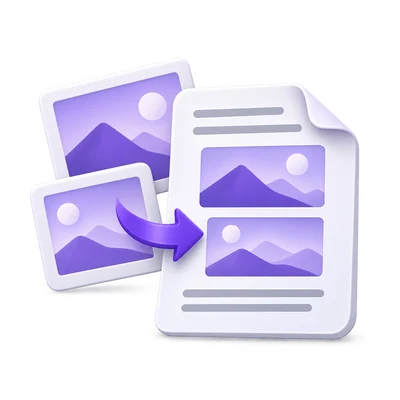

A folder of scans becomes more useful when the pages have a clear order and layout. Images to PDF provides that assembly step, including frame review for supported multipage formats. The most important layout choice is whether to keep the whole image visible or deliberately fill and crop the page area.
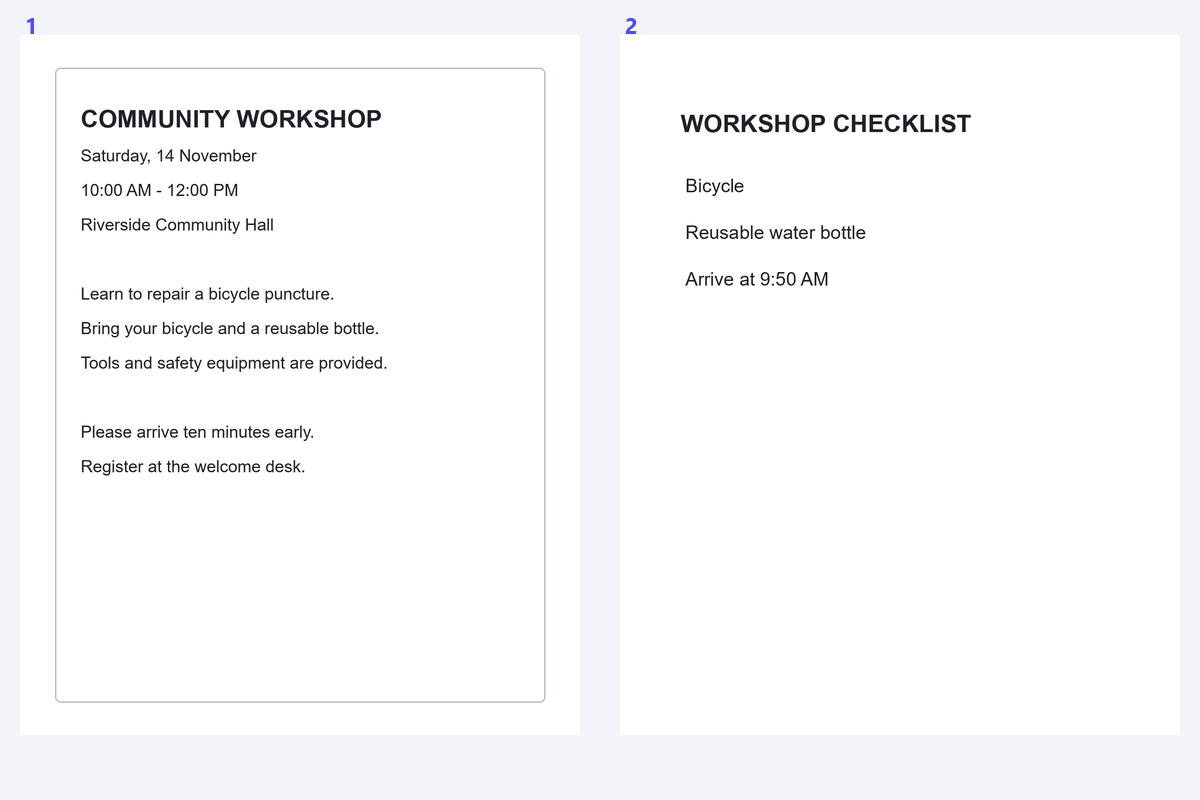
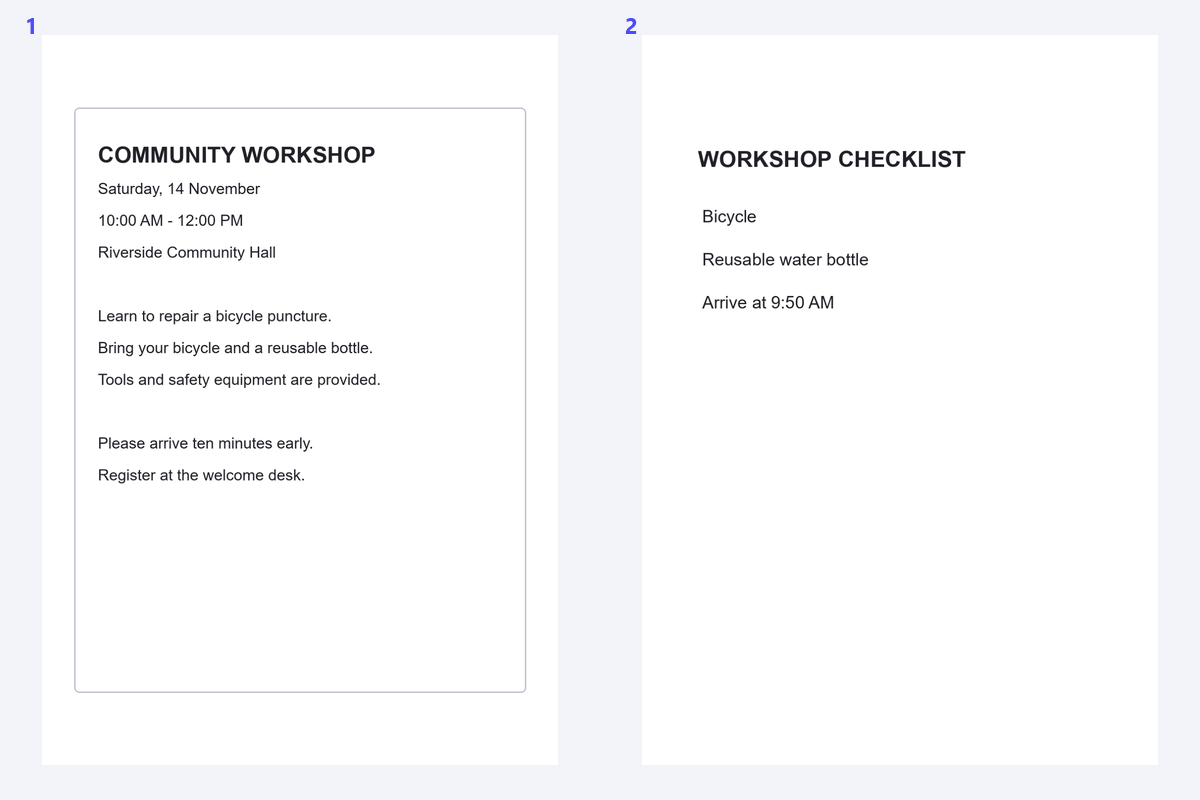
The example uses a public workshop notice image followed by a schedule image. Compare the source images with their arranged PDF pages, including the fit and margins.
Add the images and inspect prepared frames
Open Images to PDF and select the supported files. Check the board after preparation, especially if a TIFF or animated image may contain several frames.
This route accepts JPEG, PNG, TIFF, GIF, WebP, BMP and SVG. It is different from the separate Image OCR format list, so do not assume every OCR image extension is accepted here.
Arrange the complete output board
Move the notice, schedule or other pages into their intended sequence. Rotate sideways images and remove unwanted frames.
All remaining board pages will be exported. A selection only tells the tool which images an edit affects; it does not limit the output to selected thumbnails.
Use Contain for documents unless you intentionally want to crop the edges.
Set a layout that keeps the useful content
Choose a paper size and orientation, then compare Contain with Cover. Keep Contain when cropping the image edges would lose text or annotations.
Set margins and background, check the preview and choose a useful output filename. Click Start to assemble the PDF from the prepared pages.
Inspect all frames from a TIFF or animated source before exporting.
Download and choose the right recognition route
Download the PDF and inspect its order, orientation and edges. Confirm that every useful frame is included and no accidental extra frame remains.
Use PDF OCR when you want to recognize pages in the combined document. For one source photo, Image OCR can avoid an unnecessary conversion to PDF.
Common questions
Can one image file produce several PDF pages?
Yes. Supported multipage or animated sources can expose multiple frames. Inspect the prepared board and remove frames you do not want.
Will only selected images be exported?
No. All images left on the board are exported. Selection controls editing operations such as rotation, duplication and removal.
What is the difference between Contain and Cover?
Contain keeps the full image visible inside the page area. Cover fills the area and can crop edges when the image and page proportions differ.
Are all image files processed locally?
No. Supported ordinary JPEG, still PNG and still WebP files can be prepared locally. Other formats or unsupported decoding paths use server preparation; final layout and assembly run in the browser.
Prepare your next document with Images to PDF.
Use Contain for documents unless you intentionally want to crop the edges.