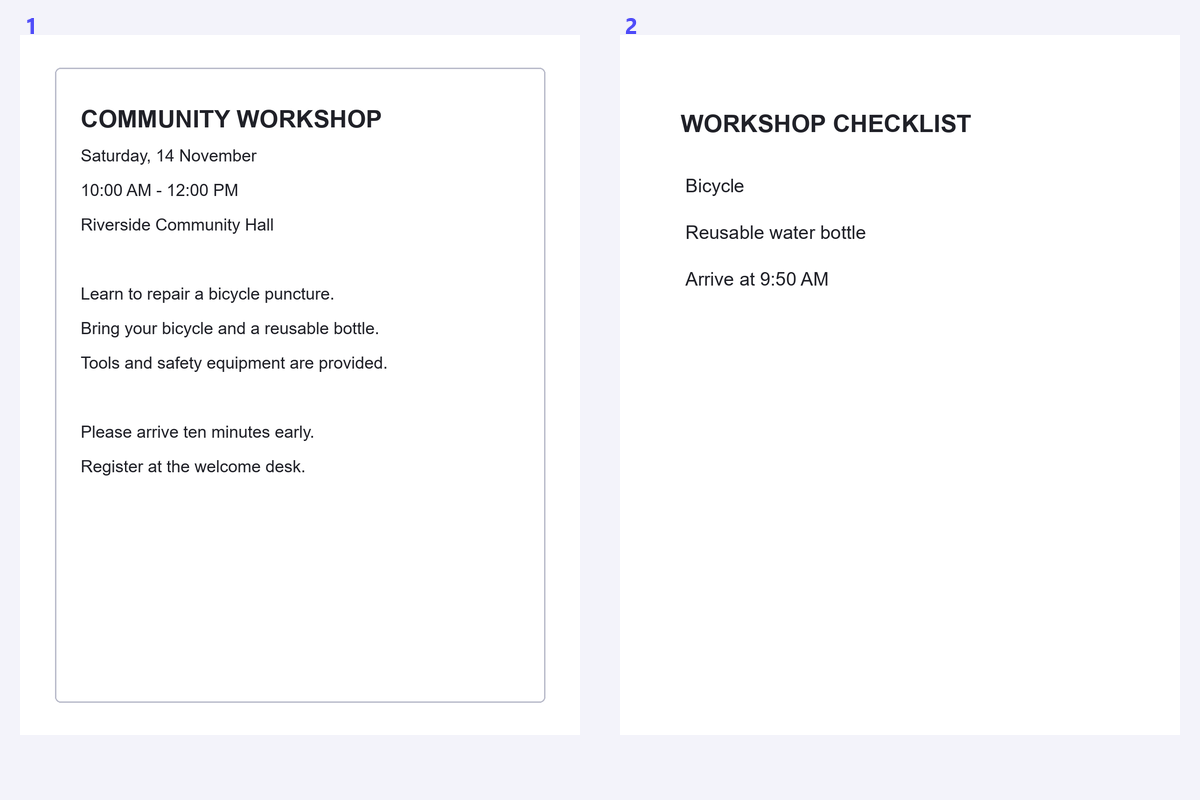
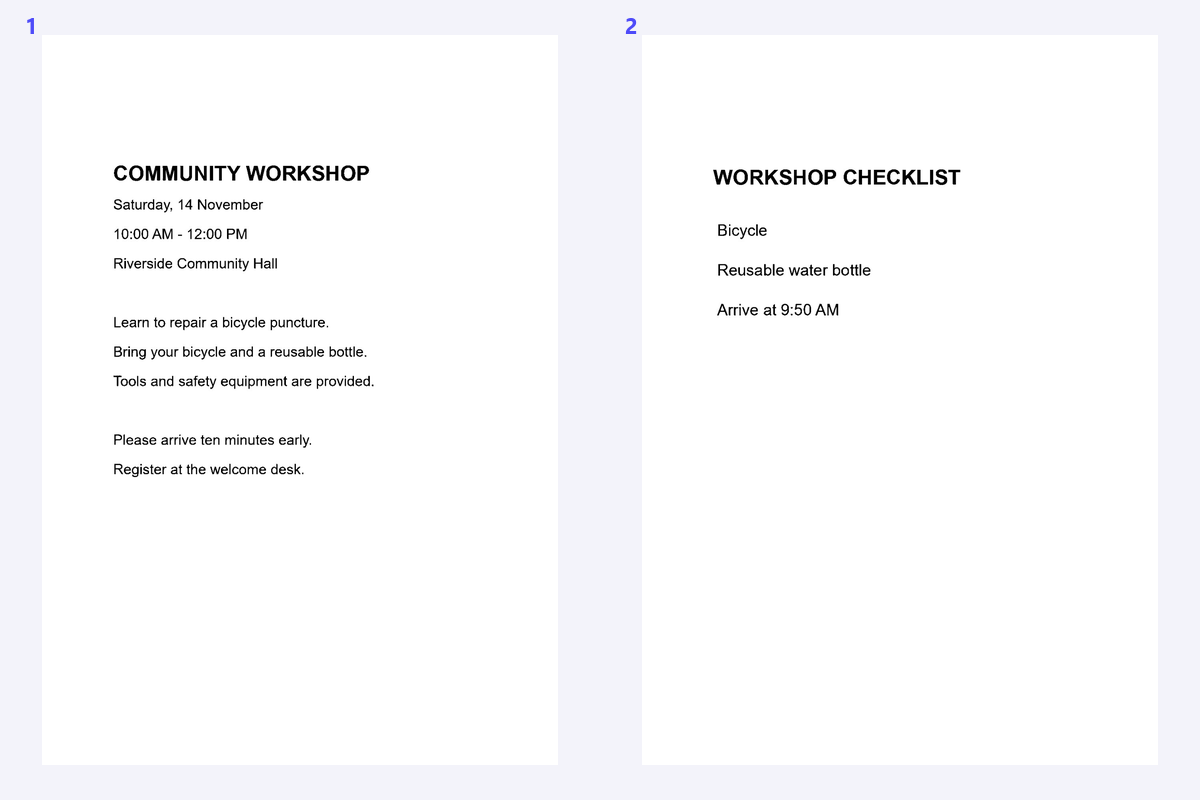

A phone photo is a useful starting point, but a group of photos can be awkward to read in order. Scan to PDF adds a framing and arrangement step: correct the page corners, review the image treatment and create one PDF. It is a preparation workflow, not text recognition, and it deliberately normalizes the photos.
The example uses public workshop images as an ordered reading packet. Compare the source photographs with the assembled PDF and inspect both page order and the outer text edges.
Capture or import clear document photos
Open Scan to PDF and choose the photo files, or use the camera option when available. Include the whole page and avoid glare across the writing.
For a collection, capture the pages in order and keep the original photos. A photo can be easier to recognize directly than a smaller recompressed PDF version, so use this workflow when a multipage PDF is genuinely useful.
Adjust the corners and review the image
Switch to the corner-editing view and place each point on the page boundary. Review the corrected preview, especially text near the corners.
Choose color, gray or monochrome, then adjust brightness and contrast carefully. Preserve colored annotations when they carry meaning and avoid making weak strokes disappear against a white background.
Use Image OCR directly when you only need text from one original photo.
Arrange the pages and create the PDF
Move pages into their intended order and review orientation. Choose A4, Letter or fit-to-image paper, then set margins and quality.
Click Create PDF. Preparation uses a normalized photo with a maximum 2400 px longest edge; the quality selector controls JPEG output rather than recovering original camera detail.
Take a better photo when glare or motion blur covers letters; cleanup cannot reconstruct them.
Download and decide whether OCR is needed
Download the PDF and inspect its order, crop and readability. Confirm that the first and last lines survived the perspective correction.
The result has page images, not a recognized text layer. Continue with PDF OCR for the pages you need, or retain the PDF as a reading copy and recognize an original photo separately.
Common questions
Does Scan to PDF extract text?
No. It creates a PDF containing page images. Use PDF OCR afterward, or Image OCR for an original single photo.
Can I correct a photo taken at an angle?
Adjust the four page corners to correct perspective. This can straighten converging edges, but cannot reliably repair blur or a curved book surface.
Are original camera pixels kept unchanged?
No. Photos are normalized to a maximum 2400 px longest edge and encoded as JPEG during preparation. Keep originals when maximum detail is important.
Do the photos always stay on my device?
Photo editing and PDF creation run in the browser. If you choose the paired-phone transfer feature, the transfer uses the server relay. Camera access also requires your permission.
Prepare your next document with Scan to PDF.
Use Image OCR directly when you only need text from one original photo.