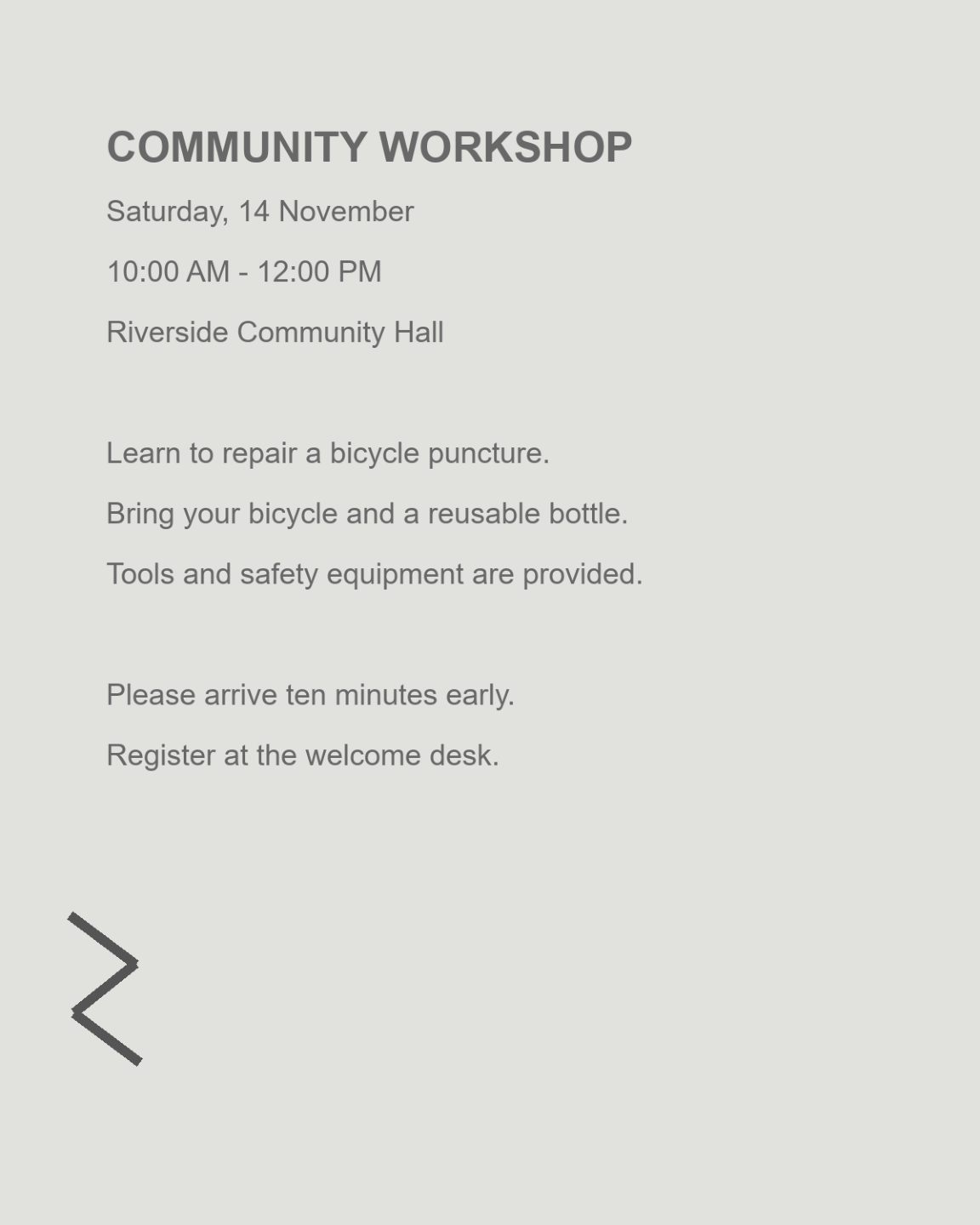
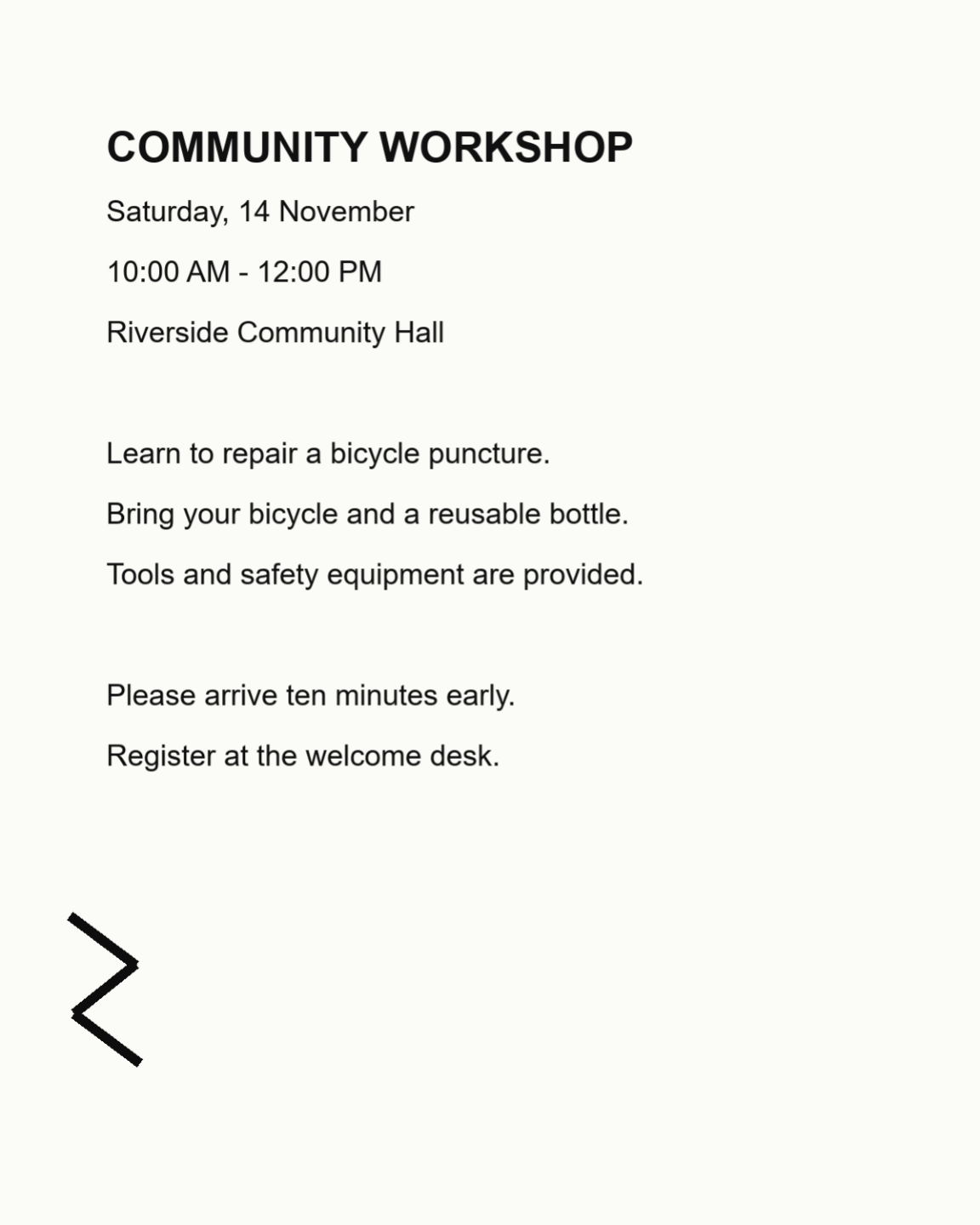

Weak contrast can make a readable page difficult to recognize, but an aggressive adjustment can remove exactly the strokes that OCR needs. This workflow starts with a small detail test, chooses an appropriate contrast method, and checks the downloaded page before recognition.
The example uses a faint public workshop scan. Compare the same paragraph in the source and adjusted result, including the smallest letters and punctuation.
Inspect a representative area of the scan
Open Contrast PDF and upload the document. Find a page containing both ordinary text and a faint detail, such as a small date or handwritten addition.
The aim is readable information, not the whitest possible background. Compare several parts of the page before choosing one adjustment for the whole document.
Choose the contrast method
Start with Manual contrast for a straightforward change to contrast and brightness. Move the controls gradually and use the original view for comparison.
Try Auto levels for a flat tonal range, or Local contrast when nearby detail needs more separation. Each method has different controls, so do not assume the same strength value means the same result across methods.
Use punctuation and pale handwriting as the detail test.
Check page scope and create the adjusted copy
Use shared settings for consistent scans, or switch to individual page adjustments when the document varies. Inspect thin strokes and shaded areas before export.
Choose the output resolution and click Start. The export is a newly rendered, image-based PDF; the preview resolution is not a promise of the final number of pixels.
Do not apply strong local contrast solely because the page looks sharper at thumbnail size.
Review before you recognize text
Download the result and compare a faint passage with the original. Look for joined letters, lost decimal points, over-darkened stamps and new halos.
If the changes preserve the information you need, continue with PDF OCR. If they damage small details, return to a milder adjustment instead of asking recognition to infer the missing content.
Common questions
Which contrast method should I start with?
Try Manual contrast for an evenly lit scan. Auto levels adjusts the overall tonal range; Local contrast changes nearby differences. Compare a small text detail before choosing.
Can more contrast make OCR worse?
Yes. Excessive contrast can remove faint strokes, merge letters or emphasize noise. Use a conservative setting and review the actual recognized result.
Does contrast adjustment keep searchable text?
The adjusted PDF contains rendered page images. Existing searchable text is not retained; use PDF OCR afterward when needed.
Can I change only difficult pages?
The editor supports shared and individual page settings. Confirm the current scope before moving a control, then inspect other pages before export.
Prepare your next document with Contrast PDF.
Use punctuation and pale handwriting as the detail test.