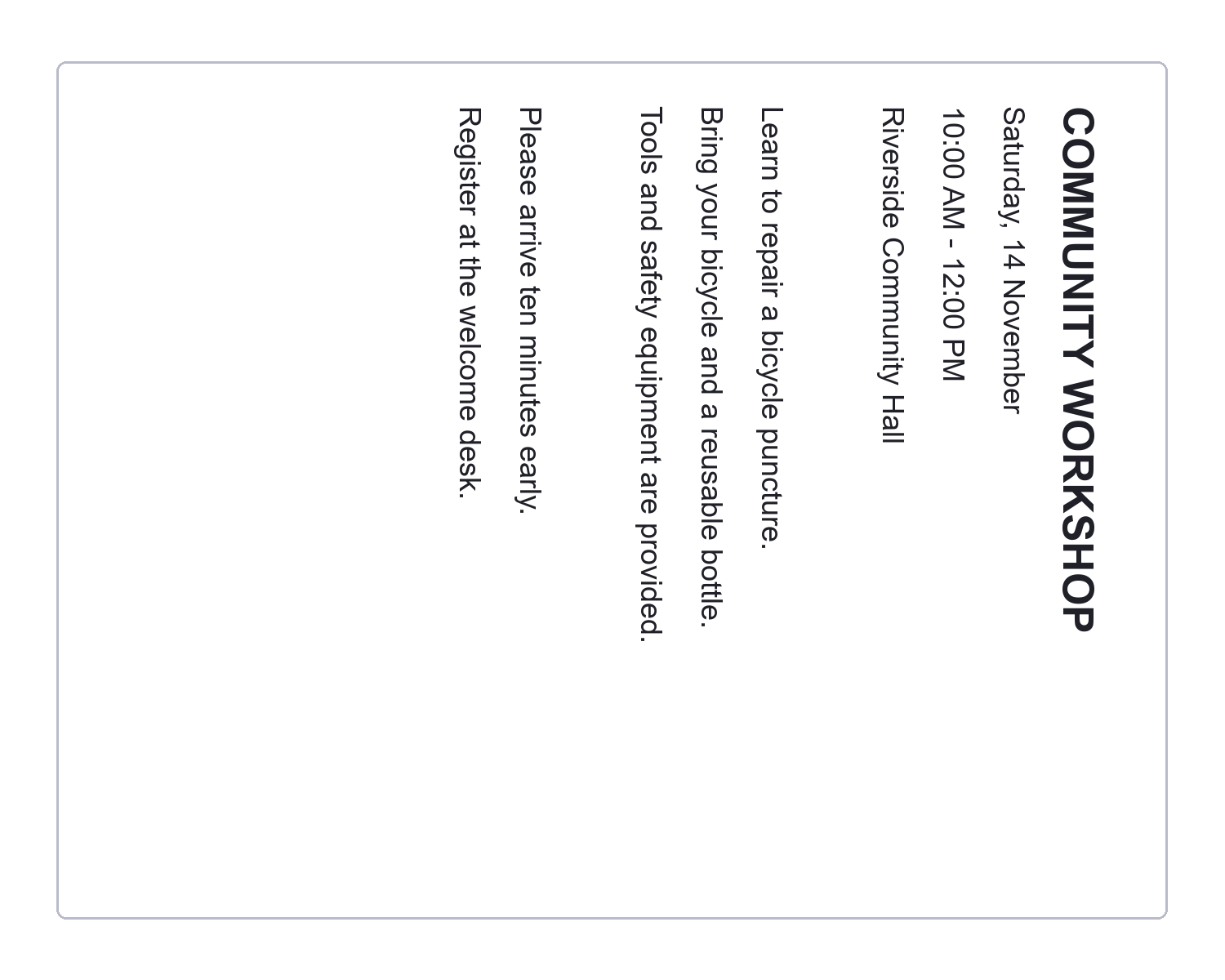
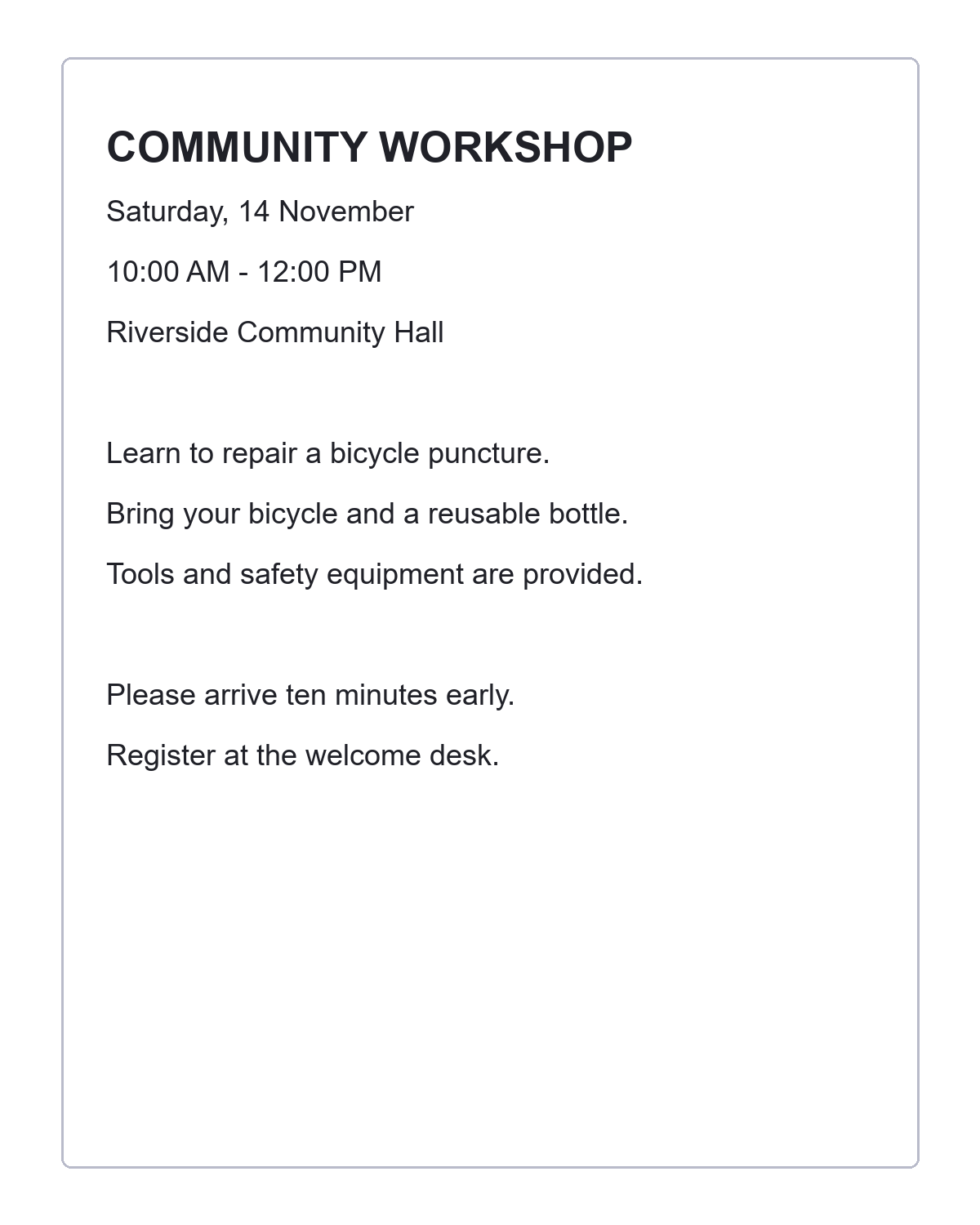

A sideways scan usually needs a simple turn, while a mirrored picture needs a different correction. This guide uses a workshop notice lying on its side. The aim is to make the writing upright without cutting off any part of the image.
Open the image and check the reading direction
Open Rotate Image and choose Upload Image. Use one supported image file up to 50 MB. If the file contains more than one frame or page, select the required frame before adjusting it.
Look at the text and any directional symbols. Decide whether the source is sideways, upside down, slightly tilted or actually mirrored. Different problems call for different controls.
Use a quarter-turn or a precise angle
Click Left or Right to rotate by 90 degrees. For the sideways notice, choose the direction that brings the heading to the top. Two clicks turn an upside-down image by 180 degrees.
For a smaller correction, use the slider or degree field. Positive values turn clockwise and negative values turn counterclockwise. Fine controls move in 0.1-degree steps. If the main problem is a slight text tilt, Deskew Image can suggest an initial correction.
The recorded example uses one Left turn, equivalent to -90 degrees. The 1,500 by 1,200 pixel source becomes an upright 1,200 by 1,500 pixel image.
Use flips deliberately and inspect the corners
Flip horizontally reverses left and right. Flip vertically reverses top and bottom. Use them only when the source needs mirroring; an ordinary sideways notice should be rotated, not flipped.
The canvas expands around arbitrary-angle rotations, keeping the image corners visible. Opaque sources use white padding. A source with transparency can retain transparent padding in PNG or WebP. Check that any combined flip and rotation still leaves words and symbols the right way round.
Read a short word in the preview. Mirrored text can be easy to miss when you judge only the shape of the page.
Rotate the image and download the copy
Choose PNG, JPEG or lossless WebP, then click Rotate Image. A quarter-turn rearranges pixels without the interpolation used by arbitrary angles; JPEG output still adds lossy encoding, even at its highest quality setting.
Review the finished image and choose Download. Keep the original separately. If you want to remove an added border, continue to Crop Image. If you need the words, continue to Image OCR and review the recognized text as a separate result.
Rotate Image questions
Can I rotate without clipping the image?
Yes. The output expands to keep the rotated corners visible. You can crop any extra border in a separate step.
Does a 90-degree turn make the picture blurry?
The quarter-turn itself rearranges pixels without arbitrary-angle interpolation. Output encoding still matters, so use PNG or lossless WebP when avoiding additional lossy compression is important.
Can I rotate all frames of an animation?
This workflow exports the selected frame as a still image. It does not preserve the complete animation.
Make the image easy to read
Choose the right turn, check the text direction and save an upright copy.