
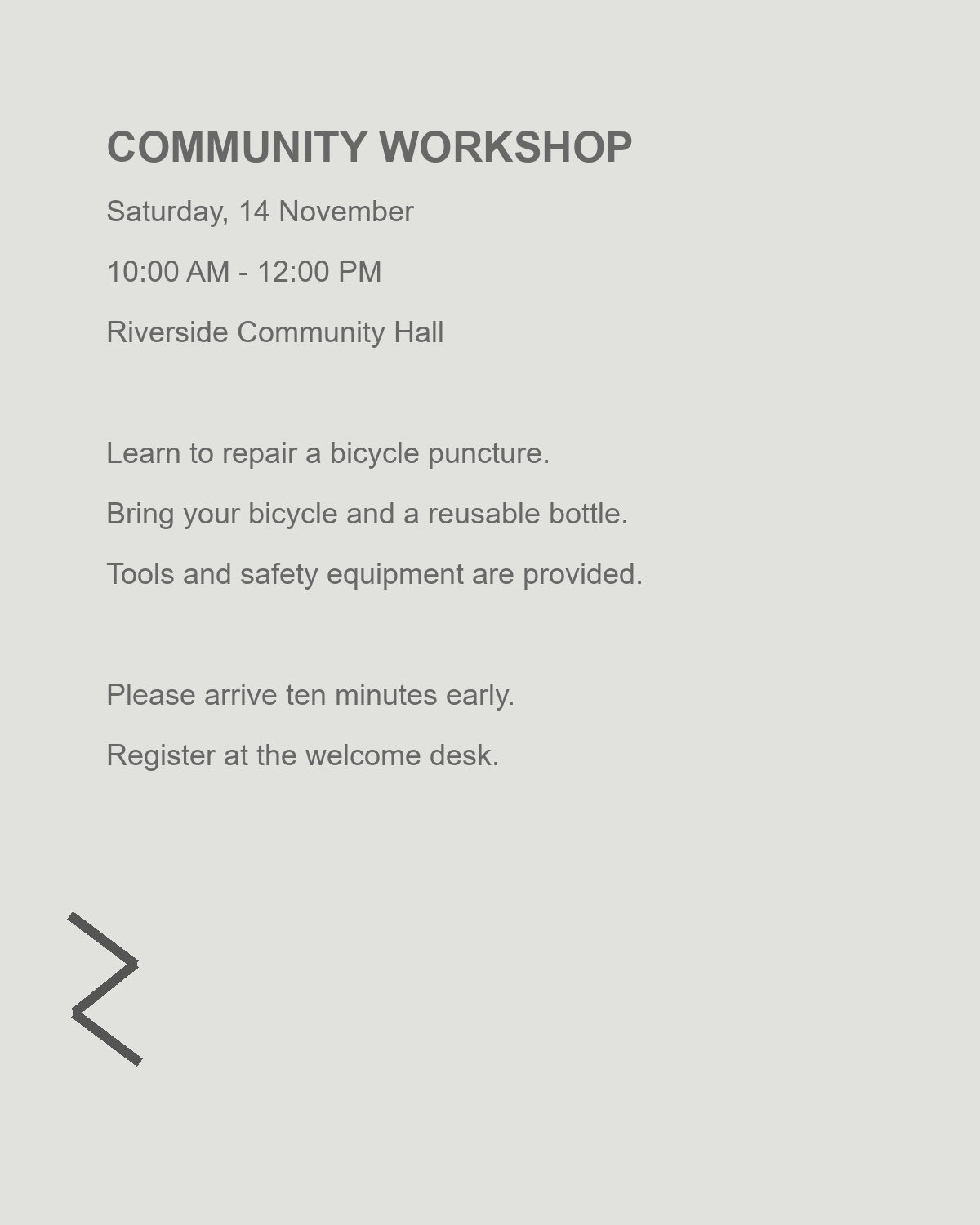
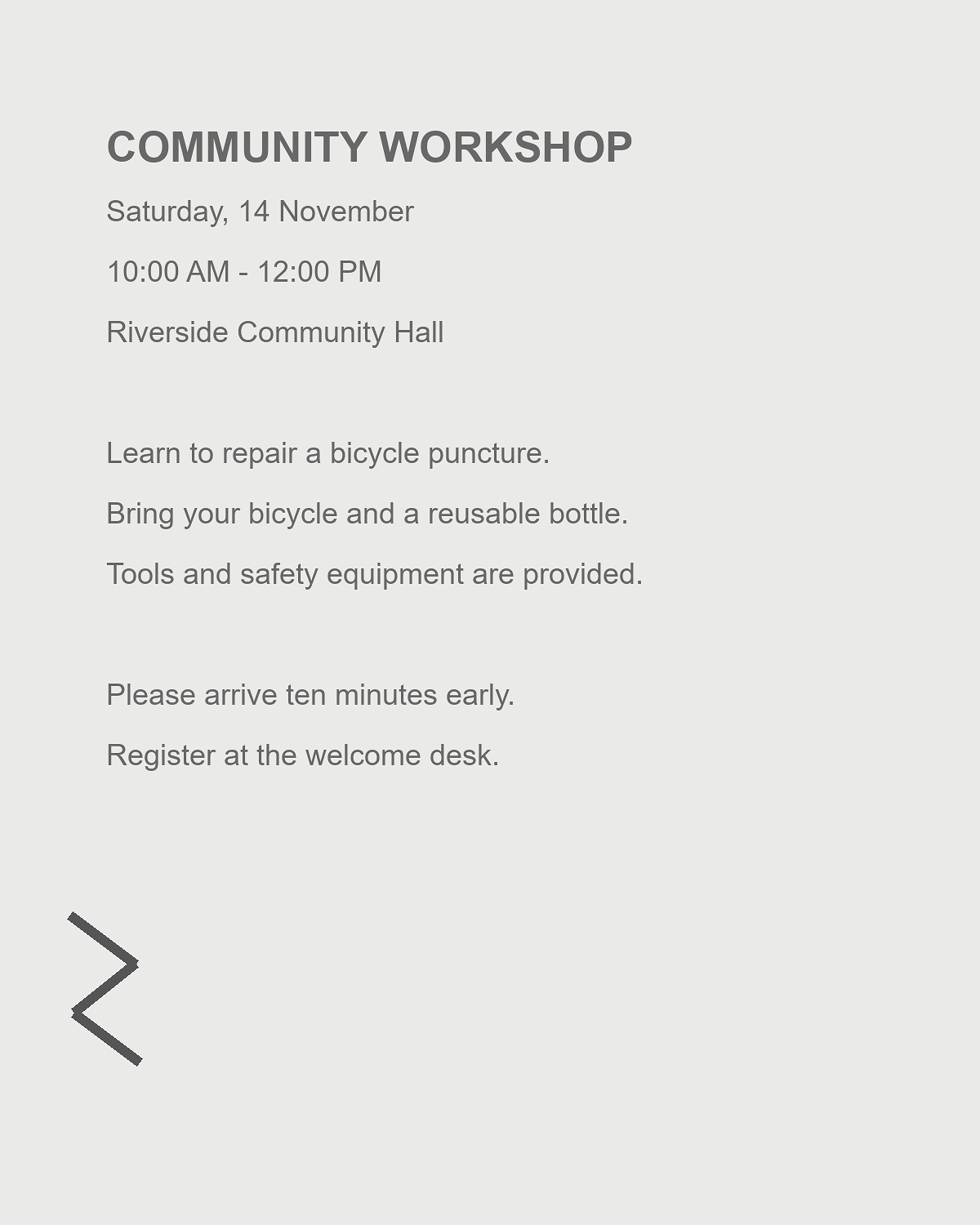

A gray paper background or soft scan can make text difficult to read, but a clean-looking page is not always a more faithful one. This example uses a faint workshop notice. The aim is to clarify the writing while keeping dates, thin strokes and any useful marks intact.
Open the source and review the initial treatment
Open Enhance Image and upload the original scan or photo. Supported image files can be up to 50 MB. For a file with several frames or pages, choose the one you want to prepare; the output is a still image of that frame.
The initial settings use Background cleanup 20 and Sharpness 15. Compare the preview with Show original before increasing anything. A clean source may need less treatment, not more.
Adjust background cleanup and sharpness gradually
Move Background cleanup while watching both the paper and the weakest text. Stop if light letters or annotations begin to fade. A completely white background is not a useful goal when it removes information.
Use Sharpness to make existing edges more distinct. Check small punctuation and letter openings for harsh outlines. Both controls run from 0 to 100; returning a control to zero removes that particular treatment.
The recorded example uses Background cleanup 45 and Sharpness 20. Compare those values with the starting treatment, and use less when your source contains delicate marks.
Keep a pale mark and a small number in view. They can reveal an excessive setting before a bold heading does.
Open the cleanup editor only for changes you need
Open cleanup editor adds brightness, contrast, color mode and presets such as Clean scan and Faint text. Compare Color, Grayscale and Black and white. A thresholded black-and-white image may suit strong print but lose a light signature or a colored note.
The eraser and rectangle clearing tools can remove unwanted local marks. Use them cautiously, then review the affected area. Undo and Redo help you compare decisions. Choose Apply changes to return the settings to the main preview.
Enhance, download and check the finished copy
Choose PNG, JPEG or lossless WebP and click Enhance Image. PNG and WebP can preserve transparency; JPEG fills it with white and uses lossy compression even at its highest quality setting.
Download the file and compare the actual output with the original. If you continue to Image OCR, check the recognized words against the prepared image and consult the source when something is uncertain. Cleanup and recognition are separate tasks; neither should silently change what the document says.
Enhance Image questions
Is this an image upscaler?
No. It adjusts the selected frame's existing pixels. It does not create a higher-resolution source or reconstruct missing text.
Will enhancement always improve OCR?
No. Some sources already work well, and excessive cleanup can remove information. Review the image and the recognized text separately.
Can I save the cleaned image without running OCR?
Yes. Enhance Image exports an image. Continuing to Image OCR is optional and uses a separate recognition request.
Clean the source with a light touch
Keep the useful marks, compare the original and save the result you can trust as a reference.